
Determine app version
Method 1 (qubeSERIES):
- Open qubeCONTROL / qubeASSESS / qubeC3 on the respective iPad.
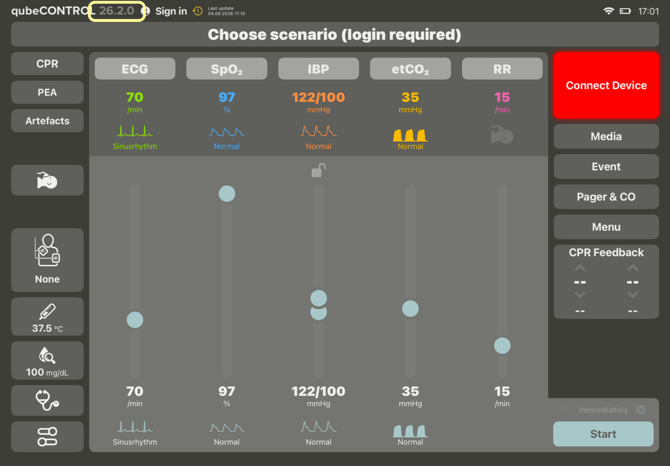
- At the qubeCONTROL the software version is displayed in the top left corner.
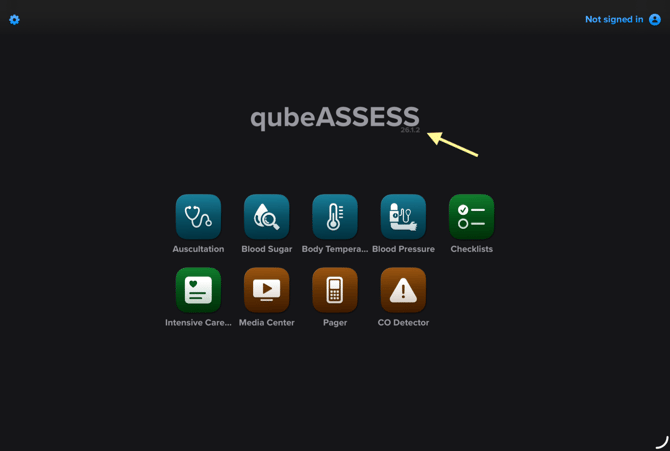
- At the qubeASSESS the software version is located in the middle below qubeASSESS.
- At the qubeMONITOR e.g. qubeC3, qubeMS2 the software version is listed under the Monitor designation.

Note:
All three apps should always be at the same version. If this is not the case, unforeseen disruptions may occur that hinder smooth simulation.
Method 2 (qubeAVgo / qubeAVpro / qubeAVproREMOTE):
- Open qubeAVgo on the iPad and the qubeAVpro on the MacBook. If available, also open the qubeAVproREMOTE on the iPad.
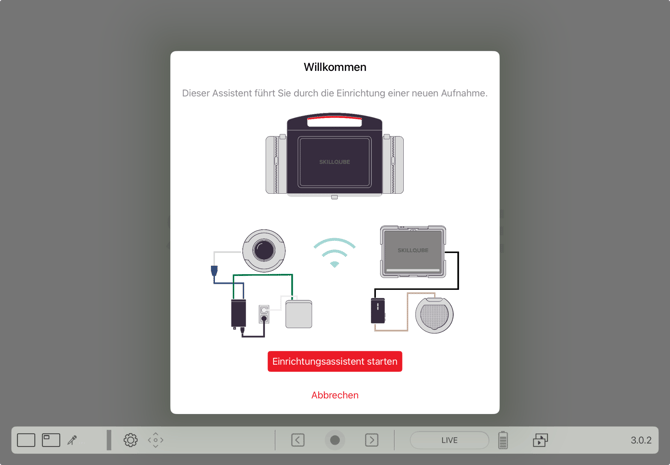
- Open qubeAVgo on the iPad. The software version is displayed at the bottom of the taskbar.
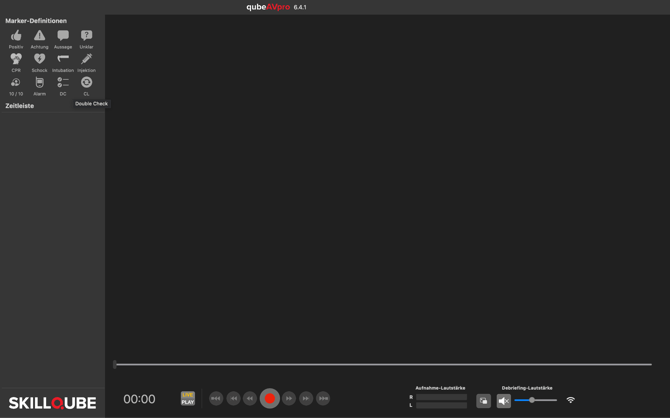
- Open the qubeAVpro on the MacBook. The software version is displayed at the top center.
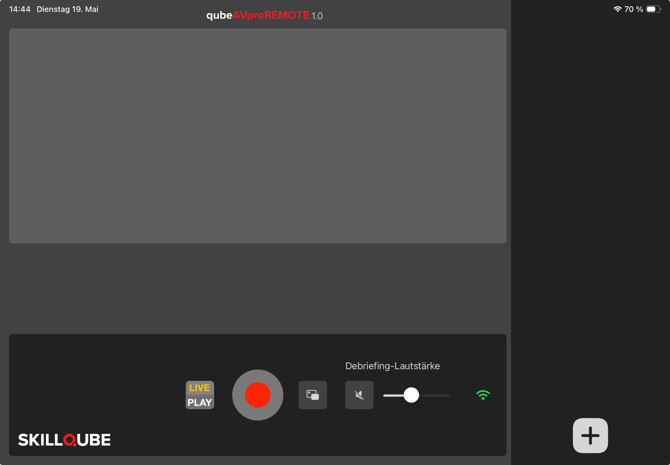
- To determine which app version qubeAVproREMOTE used, open qubeAVproREMOTE and connect with the qubeAVpro. Now the version should be in the center at the top: qubeAVproREMOTE appears. It is important to know that the versions of both apps do not match.”
Update the Apps in the App Store.
All SKILLQUBE apps available on iPads, iPhones, iPods, and MacBooks will be updated in the App Store. To do this, please follow these steps:
- Go to the app section of the respective device.
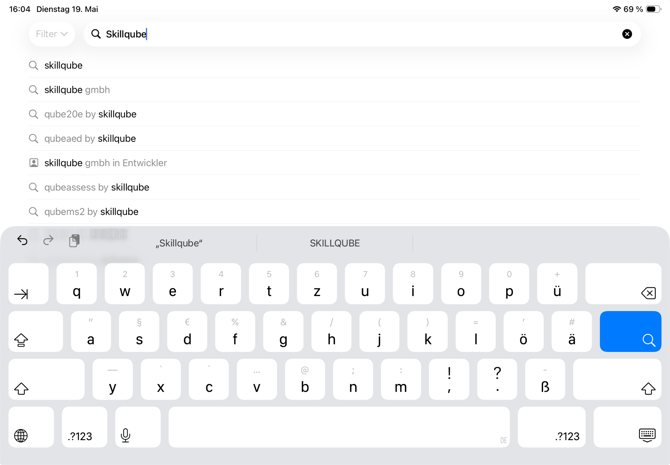
- Enter "Skillqube" in the search bar.
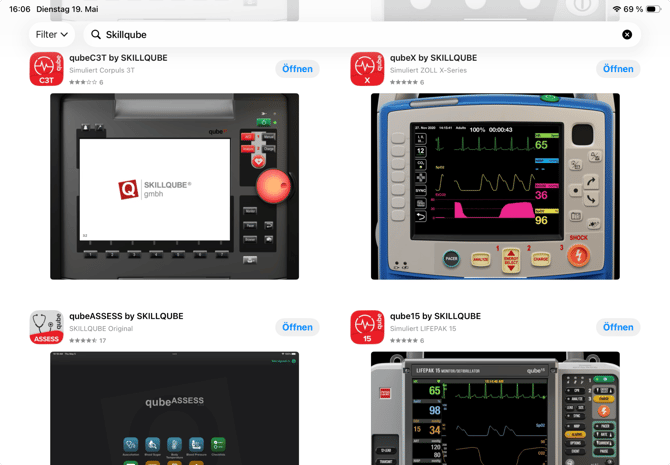
- Now all our apps appear in the overview. Select the desired app.
- Go to the desired app view.
- Now press the blue "Refresh" button. Please note that depending on your internet connection and the state of your iPad, it may take some time for the update to appear.
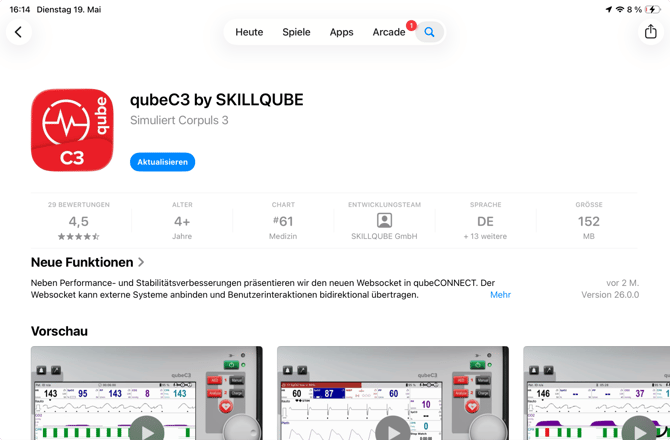
Different app versions installed
- After you have updated your apps, please start qubeCONTROL, qubeMONITOR and qubeASSESS.
- Please connect your systems as usual.
- If the software versions are incompatible, an error message will appear.
Please do not ignore!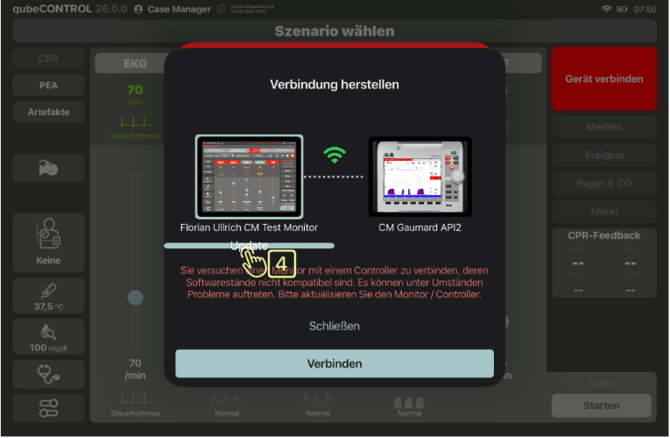
iPadOS-Updates:
iPadOS is updated directly through the iPad's Settings. Updates can be downloaded and installed under General > Software Update. Before installing major updates (e.g., from iPadOS 26.6.1 to iPadOS 27.0), you should consult with us, as these updates sometimes include changes that require adjustments to the apps. The SKILLQUBE newsletter will notify you as soon as a major update can be installed without issues. Therefore, you should only download automatic updates, but not install them.
Special note:
|
potential problems |
possible reason |
possible solution |
|
The app update is not showing up. |
Poor internet connection |
Try connecting to a different internet-enabled Wi-Fi network or using your mobile hotspot to establish a better connection. |
|
The app update is not showing up. |
The iOS version is outdated. |
Please check if you have the latest version of the app installed on your device for iOS or macOS. Very old versions cannot be updated. |
|
The app update is not showing up. |
Outdated hardware |
Unfortunately, Apple devices can no longer update their operating system after a certain period of time. This also makes it impossible to download new apps. |
|
The app update is not showing up. |
An MDM (Mobile Device Management) system is being implemented in the company. |
Unfortunately, app updates are not displayed in many MDMs. To resolve this, you can temporarily remove the iPad from the MDM, update it, and then add it back. |
|
The App Store cannot be found. |
App Store lost in the background |
On Apple devices, you can find hidden apps using the search bar or the App Gallery. If you are unable to do so, please contact the Apple Support team. |