
09/2026
Introduction
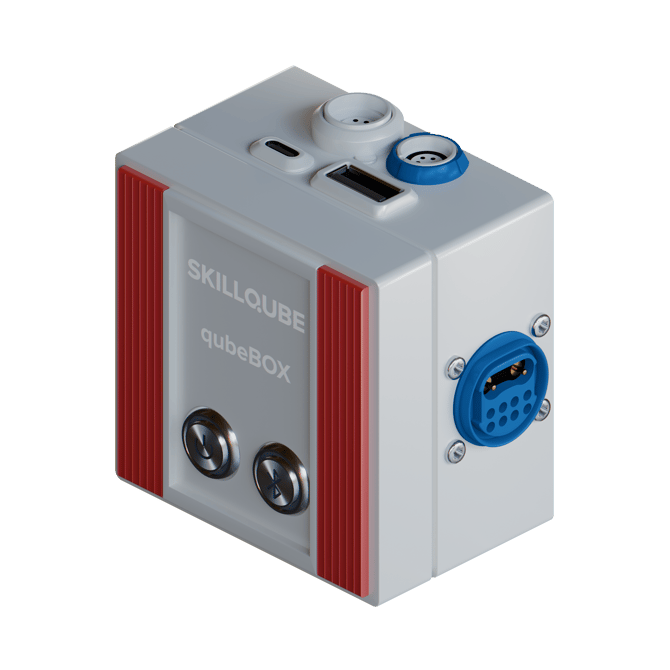
This device was developed to enable realistic and effective medical simulation training. The qubeBOX serves as a central interface for connecting sensors and monitoring technology, making it ideal for mobile and modular training scenarios.
Scope of delivery
1x qubeBOX
1x Powerbank (13400mAh)
1x USB-C cable Typ Gen 3.2 High-Speed
1x CPR feedback sensor
1x Ventilation sensor incl. pressure sensor
1x SpO₂ connection cable
1x SpO₂ sensor (adults)
1x Hard Paddles (optional for an additional charge)
User Manual (digital)
Technical data
|
Power supply: |
USB-C, 5V / 1A |
|
Interfaces: |
CPR feedback sensor (USB-A socket) Ventilation sensor (7-pin round socket) SpO₂ sensor (5-pin round socket) Hard Paddles (10-pin socket) |
|
Dimensions: |
85 mm x 85 mm x 60 mm |
|
Weight: |
approx. 250 g |
|
Connectivity: |
Bluetooth |
|
Compatibility: |
qubeSERIES from version 6.0.0 |
Overview
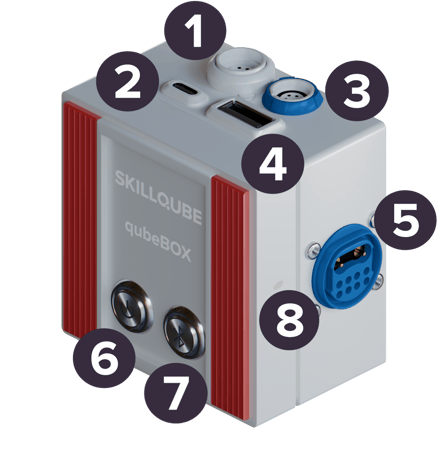
1) 7-pin round socket (connection for ventilation sensor)
2) USB-C socket (power supply)
3) 5-pin round socket (connection for SpO₂ sensor)
4) USB-A socket (connection for CPR feedback sensor)
5) 10-pin socket (connection for Hard Paddles)
6) On / Off switch
7) Bluetooth button
8) Reset button (can be pressed with a pointed object, approx. 1.5 cm long)
Operating elements
On / Off switch (6): This switch is used to switch the qubeBOX on. The switch is latching, so it remains in a pressed position. The operating status is also indicated by the integrated LED.
Bluetooth button (7): This button can be used to disconnect an existing Bluetooth connection. The integrated LED shows the connection status.
Reset button (8): This button can be used to reset the qubeBOX. The button can be pressed with a pointed object (approx. 1.5 cm long). Press and hold the reset button while the qubeBOX is switched on. As soon as the on / off switch flashes red, the button can be released. After resetting, the qubeBOX will restart.
Displaying the LEDs
|
LED on / off switch |
LED Bluetooth button |
Status |
|
|
|
Starting of the qubeBOX |
|
|
|
Starting of the qubeBOX completed |
|
|
|
Ready for operation qubeBOX ready for connection |
|
|
|
Ready for operation qubeBOX connected |
|
|
|
Sensor error, disconnect all sensors and restart qubeBOX ready for connection |
|
|
|
Sensor error, disconnect all sensors and restart qubeBOX connected |
|
|
|
qubeBOX is reset (see reset button) |


Legend:
|
Lights up |
Flashes |
Off |


Commissioning
Place qubeBOX
We recommend placing the qubeBOX in the right-hand side pocket of the qubeL bag. The power bank can then be stored in the opposite pocket. The qubeBOX can also be placed outside or in another bag. It should be placed close to the Monitor iPad to ensure a stable connection.
Establishing the power supply
Connect the supplied USB-C cable to the free USB-C socket on the power bank. Connect the other end of the cable to the USB-C socket (power) of the qubeBOX.
The qubeBOX can also be operated with other USB-C cables (Typ Gen 3.2 High-Speed) or another power source (e.g. USB-C power adapter). The battery level display can only be guaranteed with the supplied power bank and the supplied USB-C cable. If you use a different power source or a different cable, the qubeBOX can still be used, but the battery level will not be displayed in qubeCONTROL.
Establish connections
Connect all external devices (CPR feedback sensor, ventilation sensor, SpO₂ sensor, Hard Paddles) that are to be used in the simulation. The connections have been selected so that the external devices cannot be interchanged. Do not force the connection. Use the labels to check whether you are using the correct socket to make the connection.
Switch on qubeBOX
Press the power switch, the switch remains in the pressed position. The power switch lights up turquoise during start-up. After a successful start, it flashes turquoise and then changes to a steady green light.
Connecting the qubeBOX via Bluetooth
As soon as the qubeBOX is ready for connection, the Bluetooth button flashes blue. If the connection is successful, the Bluetooth button lights up blue continuously. An existing connection can be disconnected by pressing the Bluetooth button.
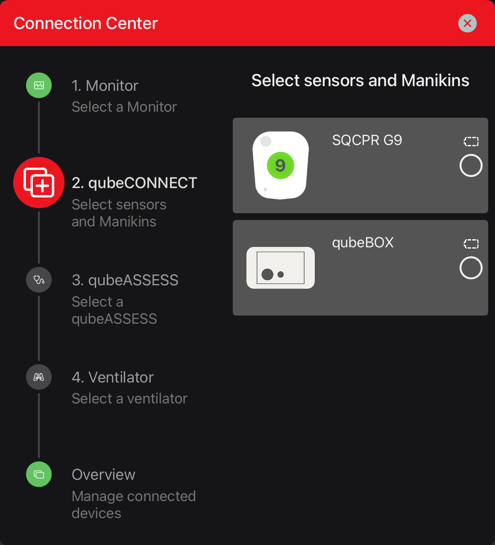
To connect the qubeBOX, first connect the qubeCONTROL to one of our qubeSERIES monitors (e.g. qubeZERO). Make sure that the qubeBOX is close to the monitor iPad to ensure a smooth connection. Then select the qubeBOX for connection in the Connection Center under qubeCONNECT.
qubeBOX detailed view
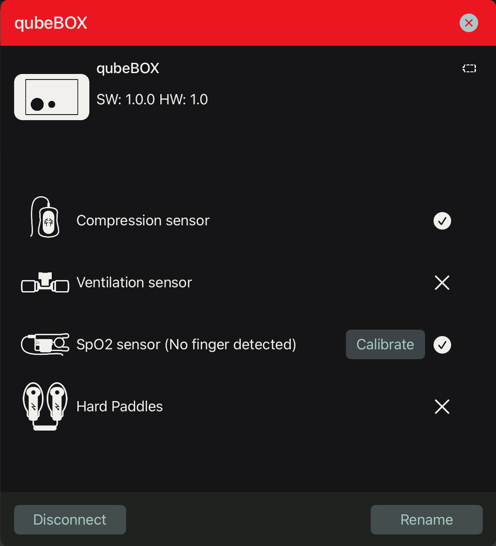
To access the detailed view, click on Overview in the Connection Center in qubeCONTROL and then select the qubeBOX. In the detailed view, the software and hardware version of the qubeBOX are displayed below the name of the qubeBOX. A firmware update of the qubeBOX can also be started here (if available). If no update button is displayed, no update is available. The battery status of the power bank is displayed in the top-right corner (if available). The connected sensors are shown with a tick. Sensors that are not connected are shown with a cross. Click on the relevant sensor to display further available data (e.g. versions). This data is not required for the simulation. The SpO₂ sensor can also be calibrated. This calibration is only necessary if the finger recognition no longer works reliably. To recalibrate the sensor, click on the corresponding button and then follow the instructions on the screen. The connected qubeBOX can also be disconnected or renamed. After renaming, the qubeBOX restarts automatically and must be reconnected.
Function of the sensors
CPR feedback sensor
- Pressure depth
- Frequency
- Discharge
→ Display in real time on the monitor and in the CPR dashboard of the controller
Ventilation sensor
- Tidal volume
- Ventilation frequency
- Ventilation pressure
→ Displayed in real time on the monitor and in the CPR dashboard of the controller
SpO₂ sensor
- Applying the sensor
→ Activate or deactivate the waveform display.
Hard Paddles (optional)
- Adjust energy
- Charge defibrillator
- Trigger shock
→ Operating the defibrillator
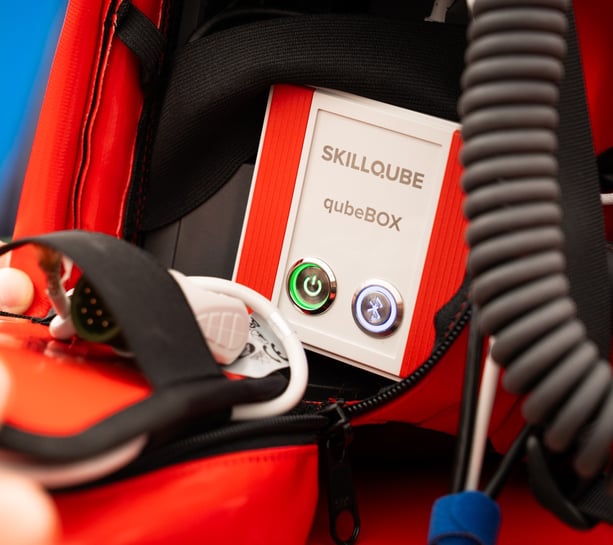
Recommended storage in qubeL bag
The qubeBOX can be stored in one of the qubeL's side pockets. The plastic housing is already recessed here so that the qubeBOX can be easily accommodated. The supplied power bank can be stored on the opposite side. The USB-C cable supplied is long enough to connect the qubeBOX and power bank to each other.
Cleaning and maintenance
Only clean with a slightly damp cloth and mild detergent.
Do not use alcohol-based or aggressive substances.
Check all components regularly for visible damage.
Support and help
Our team will be happy to help you with technical questions or support requests:
Legal notice
The qubeBOX is intended exclusively for use in medical simulation training in conjunction with the qubeSERIES. It is not a medical device and must not be used for patient care.