
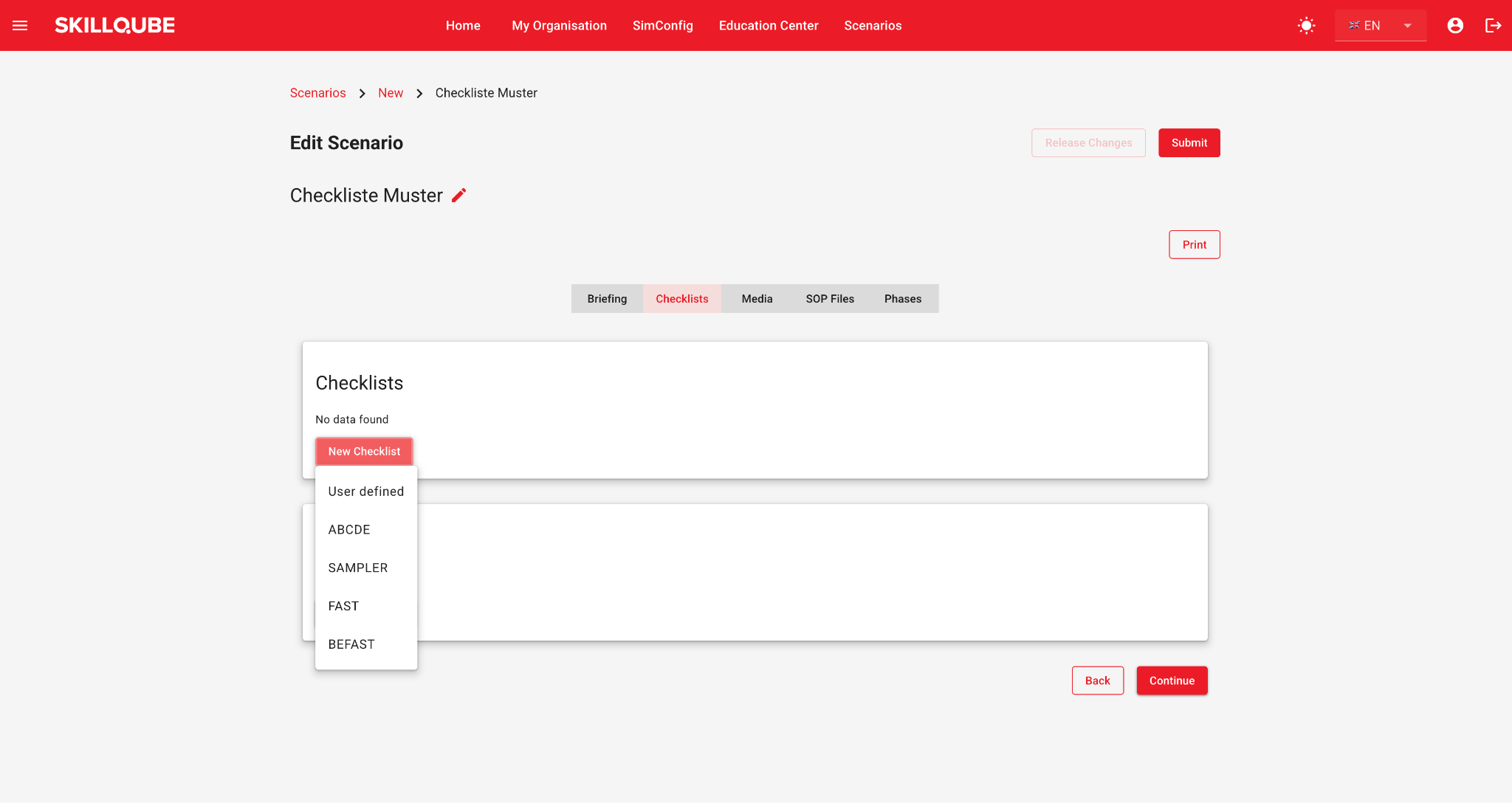
In addition to the standard checklists (e.g. ABCDE, SAMPLER, FAST), your trainers can then use organisation-specific procedures such as BEFAST.
The feature has two parts:
- SimConfig › Checklists: create, edit, delete, show or hide checklists centrally for your organisation.
- Scenarios › Checklists: add checklists from the library to a scenario, or create a new checklist directly in the scenario.
To manage checklists, you need the matching permission under Device management › Checklist. Permissions are granted individually:
|
Permission |
Allows |
|---|---|
|
Read |
View checklists |
|
Create |
Create new checklists |
|
Update |
Edit custom checklists and change visibility |
|
Delete |
Delete custom checklists from the library |
If you are missing a permission, contact your organisation's administrator.
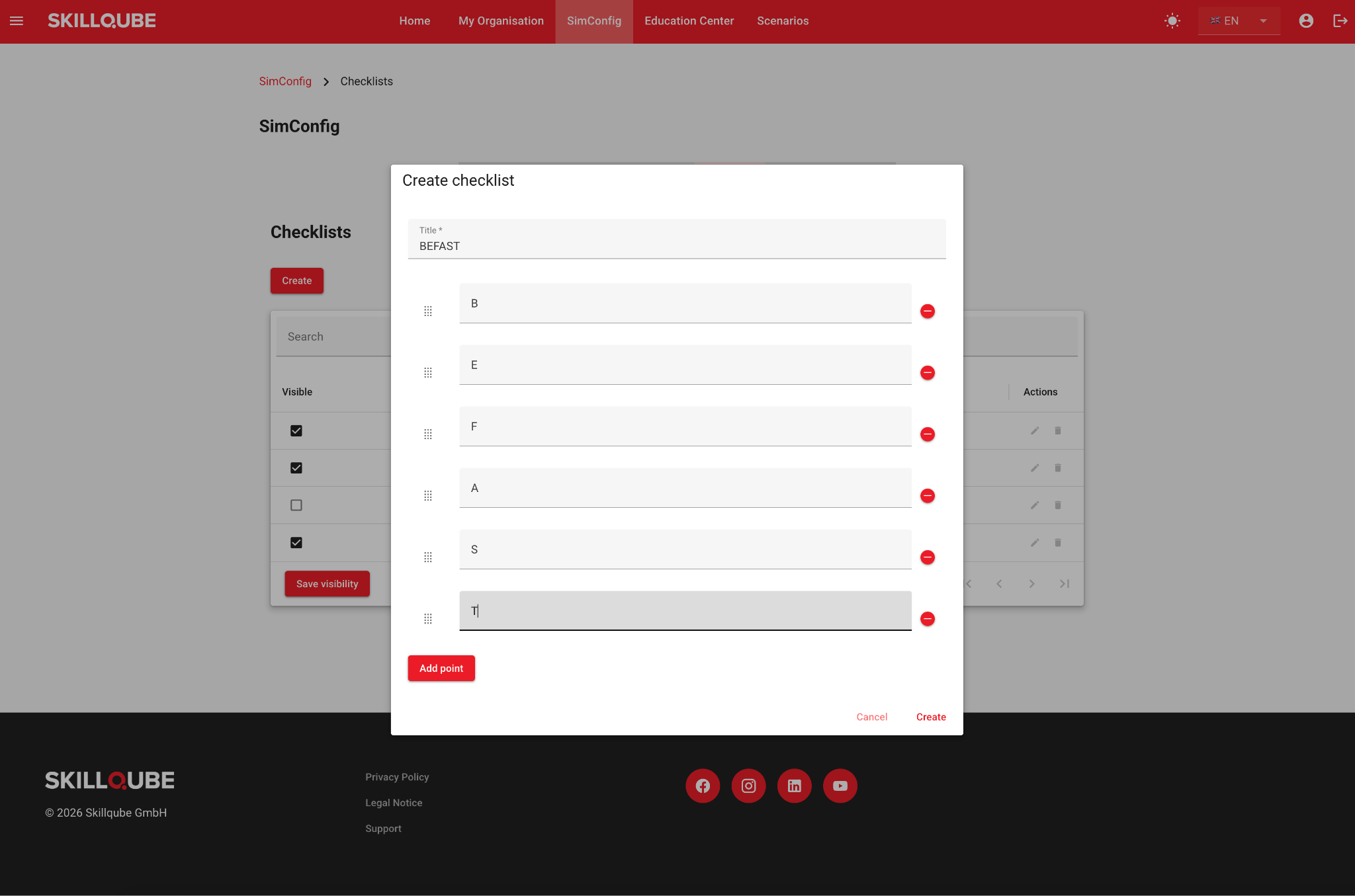
Managing checklists in SimConfigYou will find all of your organisation's checklists under SimConfig › Checklists. The table shows each checklist with its visibility, title, type and actions.
|
Column |
Meaning |
|---|---|
|
Visible |
Only ticked checklists can be selected when building scenarios. |
|
Title |
Name of the checklist, e.g. ABCDE or BEFAST. |
|
Type |
Standard = provided by Skillqube, cannot be edited. Custom = created by your organisation. |
|
Actions |
Edit (pencil) and Delete (bin), active for custom checklists only. |
Use the search field above the table to filter the list by title.
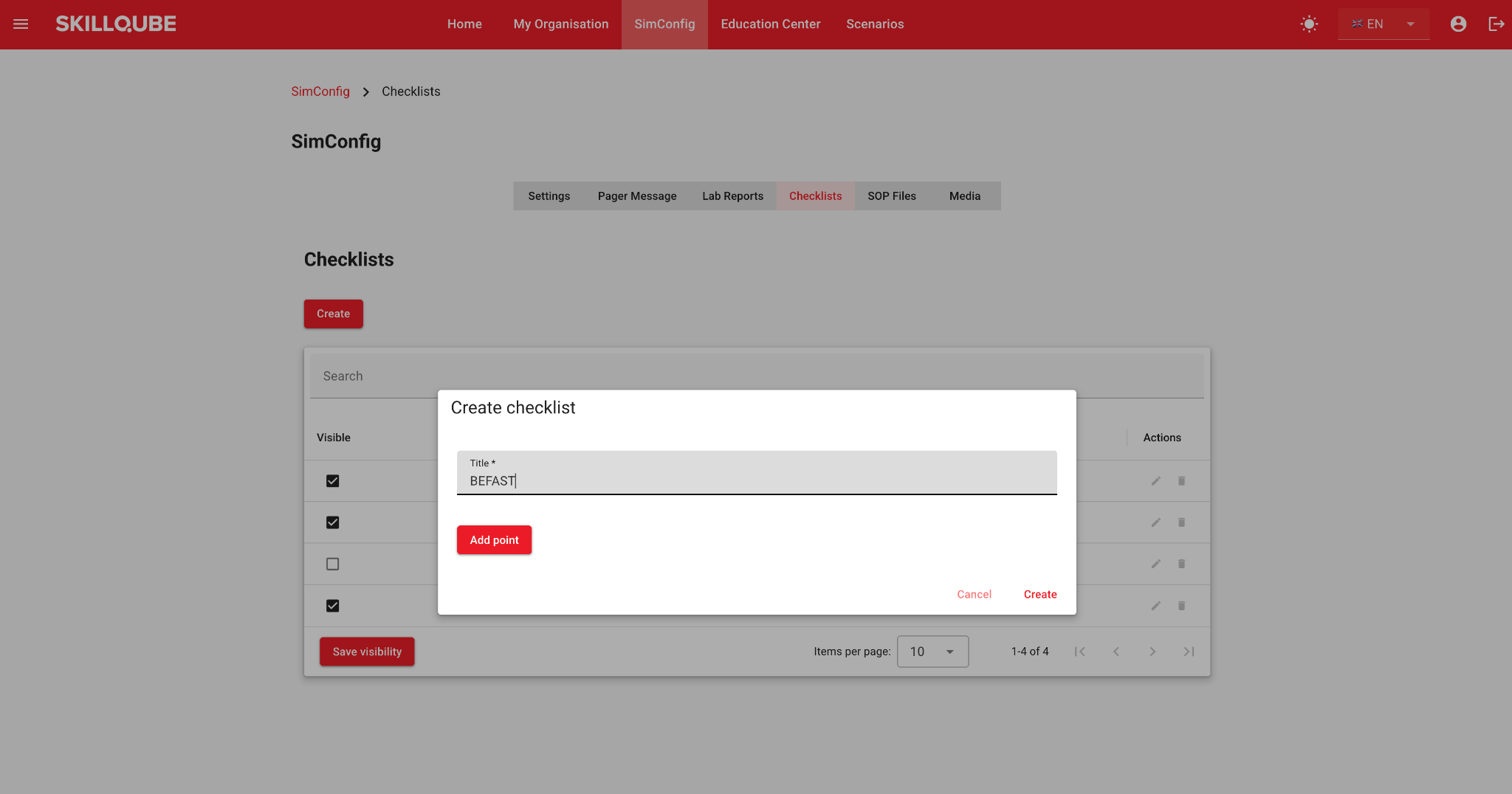
Creating a new checklist in SimConfig
- Open SimConfig › Checklists and click Create.
- In the Create checklist dialog, enter a Title, e.g. "BEFAST". The title is required.
- Click Add point to add a checklist item. Repeat for each further item.
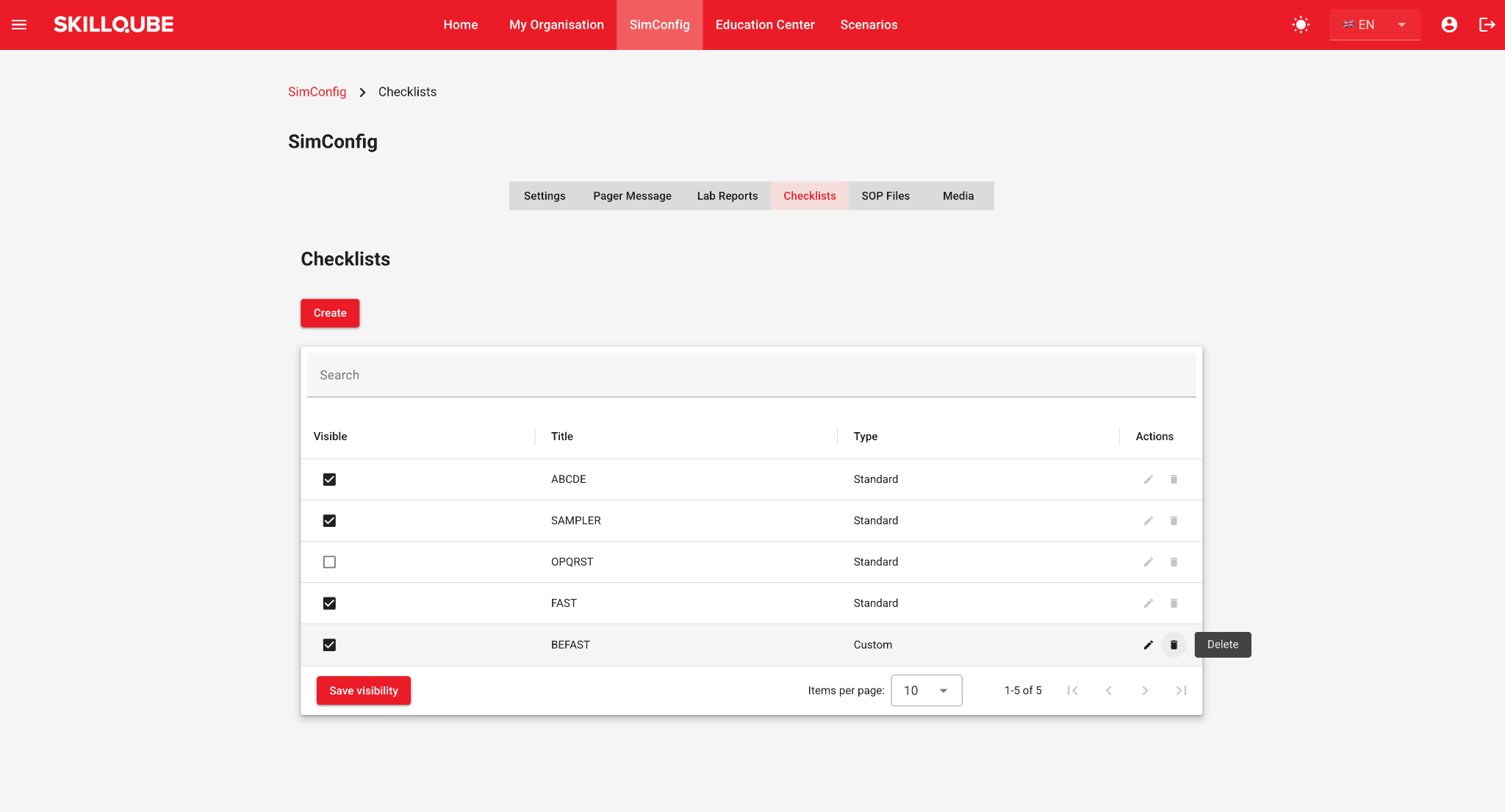
- Enter the text of each item in its field.
- Optional: change the order by dragging an item by the handle on the left. Use the red minus icon on the right to remove an item.
- Click Create. The checklist appears in the table with the type Custom and is visible by default.
Setting visibility
Visibility determines which checklists your organisation is offered when building scenarios. This applies to both standard and custom checklists.
- In the Visible column, tick or untick the checklists you want.
- Click Save visibility. The button only becomes active once you have made a change.
Example: if OPQRST is unticked, it does not appear in the scenario's New Checklist menu.
Editing a custom checklist
Click the pencil icon in the checklist's row. The same dialog opens as when creating a checklist. Change the title or items and save.
Changes only take effect when the checklist is newly added to a scenario afterwards. Checklists already used in scenarios stay unchanged, including checklists that were adjusted within a scenario.
Deleting a custom checklist
Click the bin icon (Delete) in the checklist's row, then confirm the prompt:
"Do you really want to remove this checklist from your organisation's library? Scenarios that already use it stay unchanged. This cannot be undone!"
The checklist is then no longer available for new scenarios. Scenarios that already use it stay unchanged. Deleting cannot be undone.
Standard checklists cannot be edited or deleted. If you don't want to use one, hide it using Visible.
Selecting checklists when building a scenarioAdding a checklist from the library
- Under Scenarios, open a new or existing scenario and go to the Checklists tab.
- Click New Checklist. The menu shows all visible checklists of your organisation (e.g. ABCDE, SAMPLER, FAST, BEFAST) and the entry User defined.
- Select a checklist. It is added to the scenario immediately.
- Arrange several checklists by dragging them by the handle. Use the red minus icon to remove a checklist from the scenario.
Creating a new checklist directly in the scenario
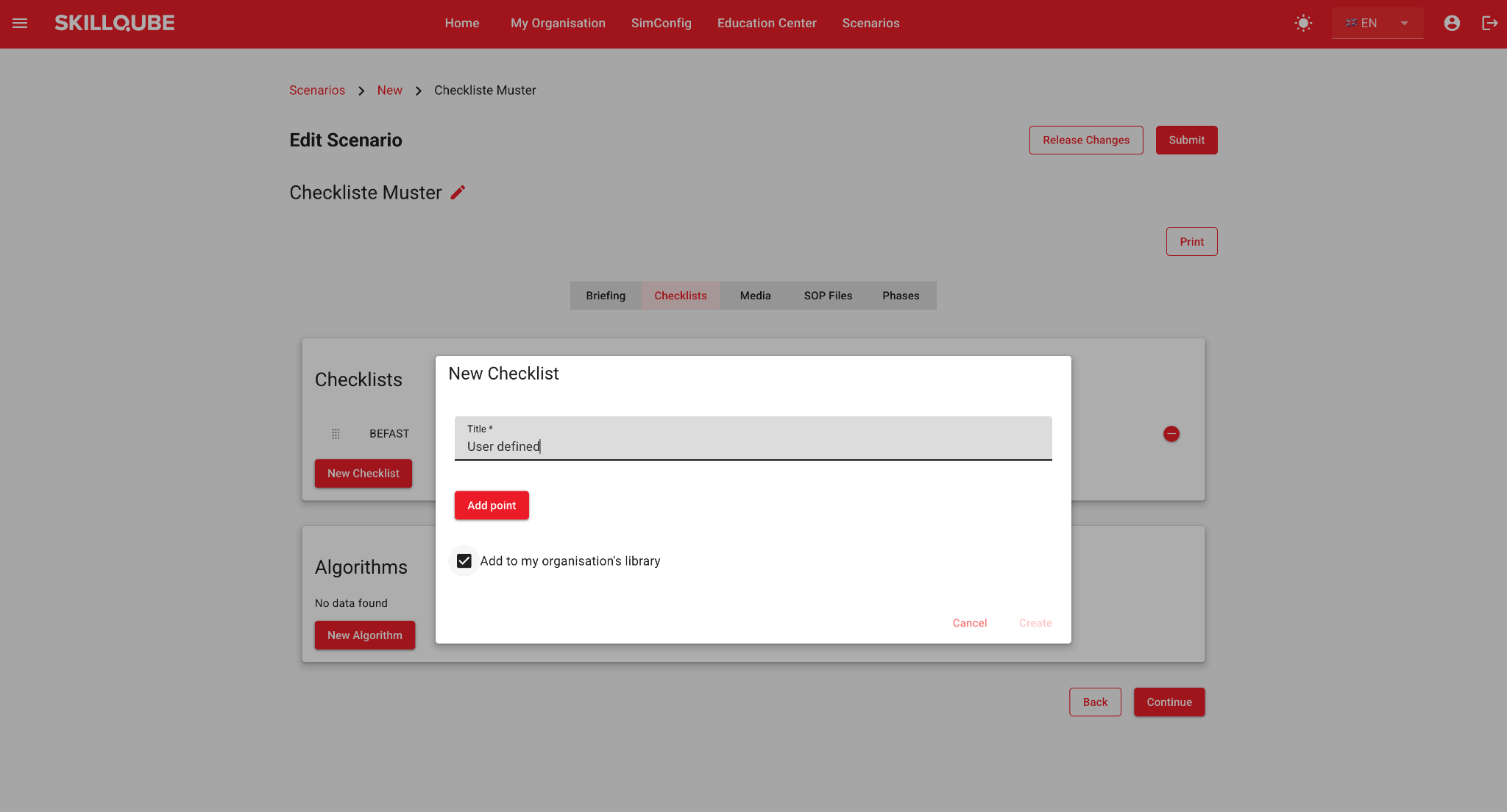
- In the New Checklist menu, select User defined.
- In the New Checklist dialog, enter a Title and add items using Add point.
- The option Add to my organisation's library is ticked by default: the checklist is then also saved in SimConfig and available for other scenarios. Untick it if the checklist should apply to this scenario only.
- Click Create.
Important: for changes to the scenario to take effect, finish editing as usual with Release Changes or Submit.
Checklists during training and in printouts
When the scenario is started on the qubeCONTROL, its checklists appear in the checklist view as before. When you print the scenario using Print, the checklists are included in the PDF.
Frequently asked questionsWhy is a checklist missing from the "New Checklist" menu?
It is probably hidden in SimConfig. Under SimConfig › Checklists, tick Visible and click Save visibility.
Why can't I edit ABCDE or SAMPLER?
These are standard checklists provided by Skillqube. They can only be shown or hidden. For an adapted version, create your own custom checklist.
Who can see my custom checklists?
All users in your organisation who build scenarios, as long as the checklist is visible.
What happens to existing scenarios if I change or delete a checklist?
Nothing. Scenarios that already use the checklist stay unchanged. Changes only apply when the checklist is newly added to a scenario. Deleting only removes the checklist from the library.
Where do participants see the checklists?
On the qubeCONTROL in the checklist view, while the corresponding scenario is running.