General information
qubeCLOUD enables organisations and users to manage their systems, create scenarios and much more. Access is browser-based. When cloud users are set up, they receive an email containing temporary login details. You must enter these when you log in for the first time and then set your own password, which you can use to log in in future.
After logging in for the first time
Once you have logged in, the HOMEPAGE will open and, depending on your access rights, you will see the following items:
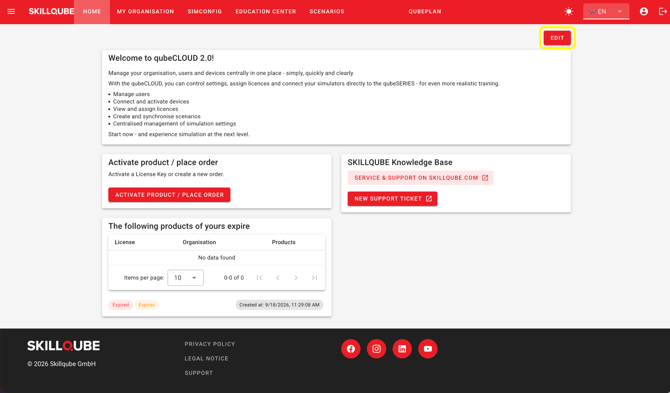
You can customize the tiles on your home screen using the EDIT button.
Depending on the user rights you have been granted, the following items will be displayed in the menu bar:
- HOME
- MY ORGANISATION
- SIMCONFIG
- EDUCATION CENTER
- SZENARIOS
- QUBEPLAN
Depending on which section you open, you can adjust specific settings.
qubeCLOUD menu bar
MY ORGANISATION
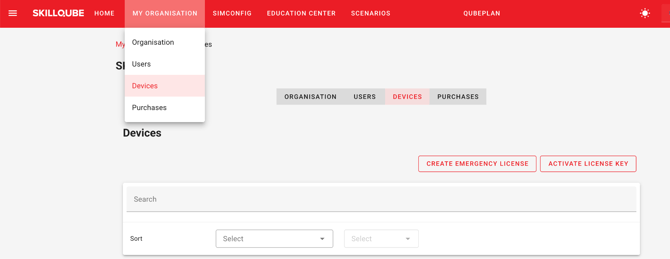
Organisation
- Under the MY ORGANISATION menu item, administrators can edit all
organisation-related information.
- Under the USERS tab, administrators can manage users (see the article on qubeCLOUD user management)
- Under DEVICES, you will find all qubeSERIE devices registered to your organisation. Here, you can view all key information regarding the licences and manage them. Furthermore, should a problem arise, you can create an emergency licence here (see the article qubeCLOUD – Emergency Licence)
Profile settings
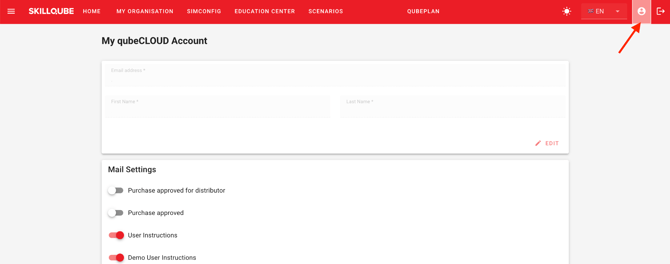
In the profile settings, users can specify which email notifications they wish to receive. They can enable or disable these as required.
SIMCONFIG
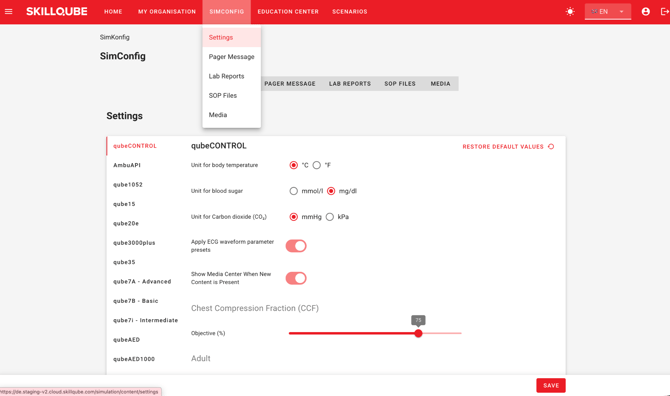
In the SIMCONFIG menu item, you can set advanced parameters for the qubeCONTROL and qubeMONITOR, apply them via synchronisation, and temporarily override units in the qubeCONTROL. A detailed description can be found in the article qubeCLOUD – Settings and Synchronisation.
EDUCATION CENTER
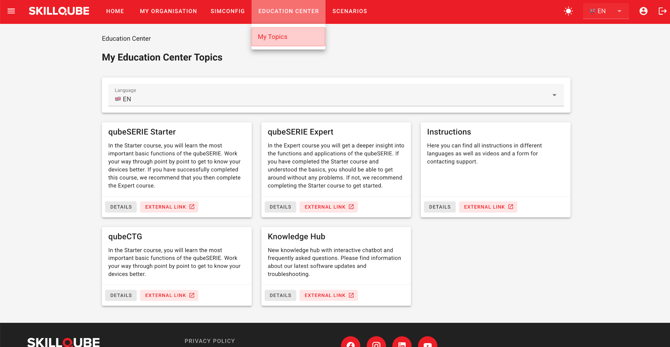
Here you will find, depending on your user rights, useful articles and e-learning courses with links to a range of fascinating topics. The Education Centre contains various lessons on SKILLQUBE’s systems. These are designed to help you learn about and gain a deeper understanding of the systems offered by SKILLQUBE.
You’ll also find SKILLQUBE’s new knowledge base here, featuring an interactive chatbot and information on frequently asked questions and troubleshooting.
Szenarios
Scenarios help our trainers to carry out simulations and case studies. Using them ensures consistency when repeating scenarios and reduces the workload on the operator. It is possible to create folders to organise the scenarios more effectively. Scenarios can also be created, shared, moved and edited.
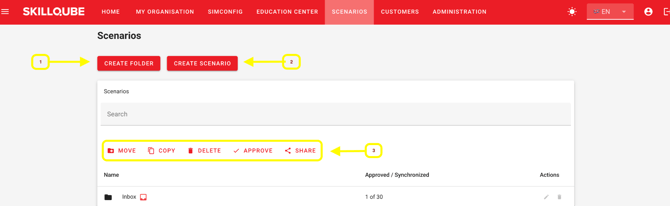
- CREATE FOLDER: You can create your own folder structure in qubeCLOUD and then store the scenarios within it. Clicking on CREATE FOLDER opens a context menu where you can create either a new scenario or a folder. To delete or move a scenario or folder, navigate to the selection menu (3).
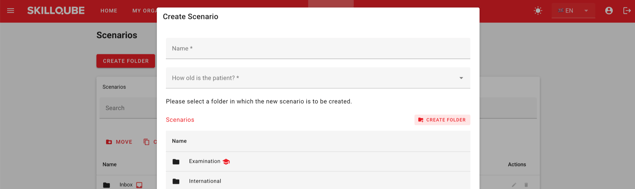
- CREATE SCENARIO: Anyone with the appropriate permissions can create scenarios in qubeCLOUD. To do this, navigate to the CREATE SCENARIO option. A field will appear where you can name the scenario and select the desired folder as its storage location. If no suitable folder is available, you can create one.
- Here, you can move, copy, delete, share and collaborate on scenarios and folders. Depending on their permissions, users may only be able to edit scenarios, but not share them. If you do not have the necessary permissions, you can request sharing in the top right-hand corner. In this case, the authorised user will receive a notification, can review the scenario and then approve it. Only once approved can the scenarios be downloaded to or updated on qubeCONTROL via synchronisation.
Creating a scenario
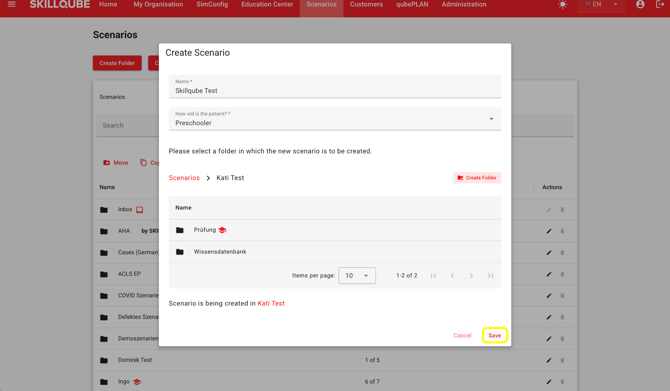
Click on the CREATE SCENARIO tab -> a window will open in which you must name the scenario and select the patient’s approximate age from a drop-down menu. You must then select a folder as the save location. If no suitable folder is available, you can create one here.
To complete this process, click SAVE or CANCEL in the bottom right-hand corner of the screen.
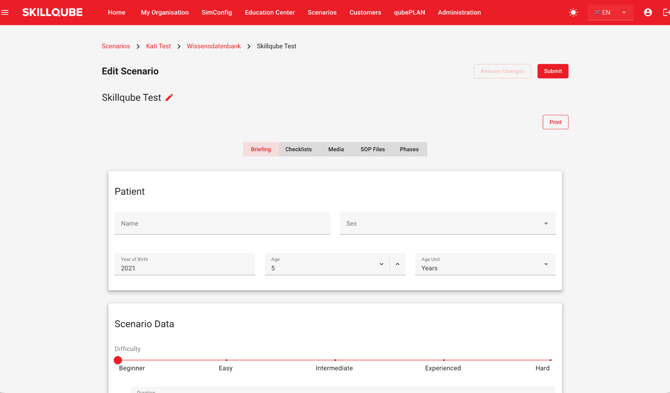
Once this process is complete, the page for creating the scenario in detail will open. Here, in the BRIEFING tab, you can now select general patient details, scenario details and the required resources.
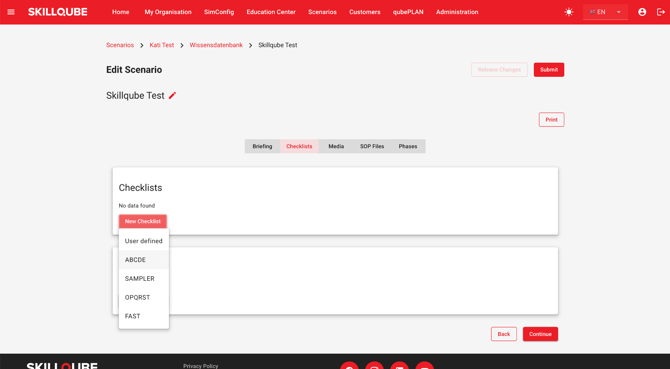
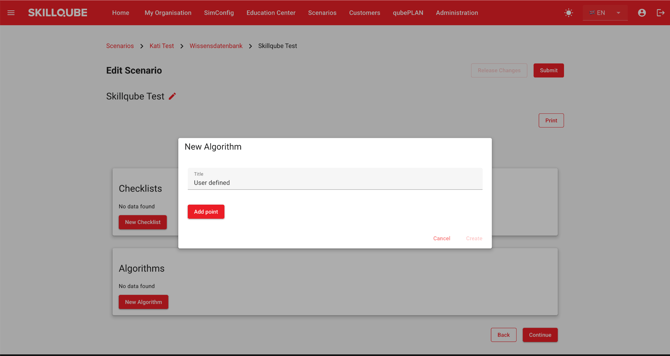
Under the CHECKLISTS section, you can select and add either pre-defined or user-defined checklists and algorithms.
You can insert various types of media, such as images and videos, via the MEDIA option.
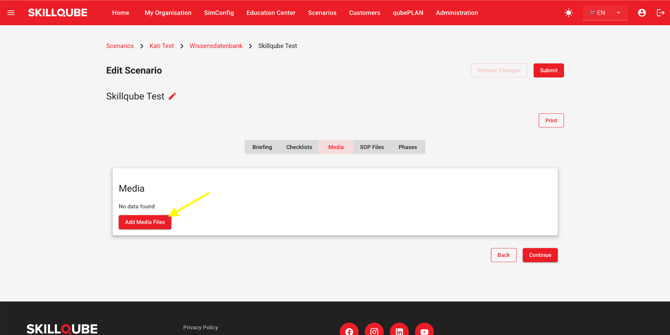
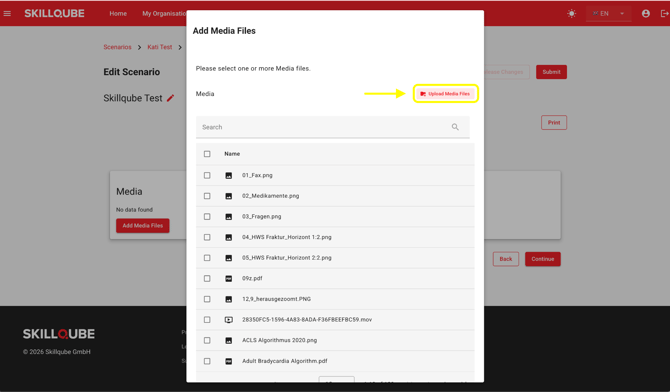
You can select media that has already been uploaded, or add your own via the Upload media files option.
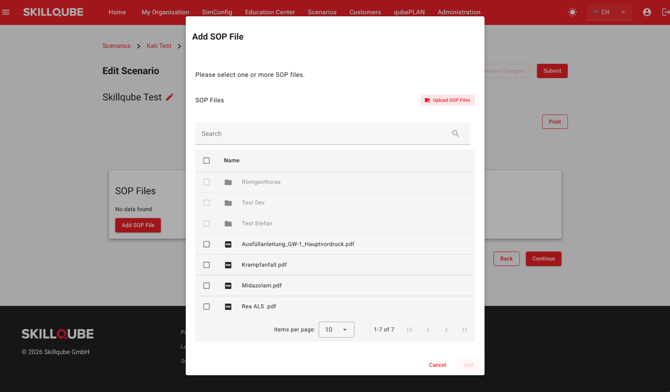
The procedure for SOP files is the same as for media files. You can add your own files or select from existing ones.
Under PHASES, you can divide the scenario into different phases. Here, you can set a trend period, phase duration and various vital signs (respiratory and circulatory). You can specify what should be displayed on the ASSESSMENT screen during this phase and which MEASURES need to be carried out. Under INTENSIVE VALUES, further parameters can be specified.
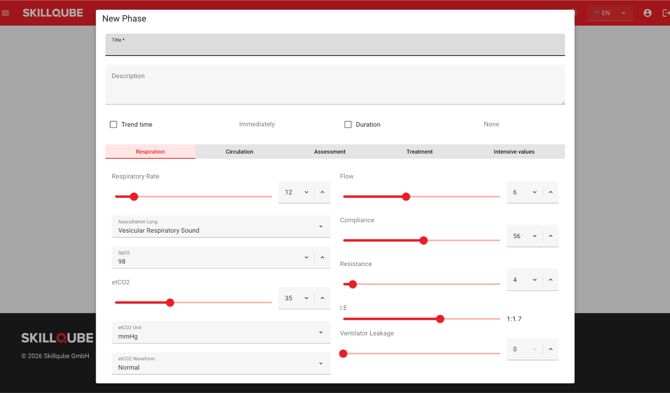
You can add as many stages as you like to a scenario and decide when to move on to the next stage.
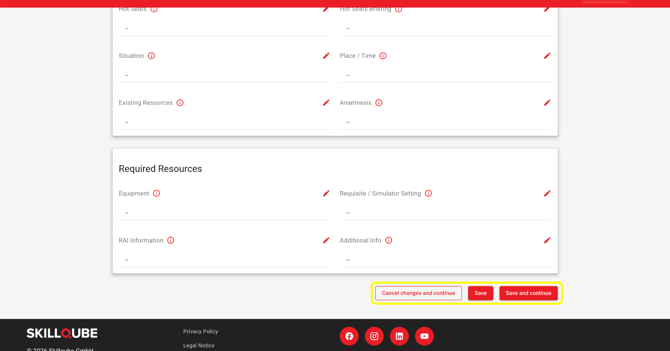
It is important that you click ‘Save’ in the bottom right-hand corner of the relevant page after each step so that your changes are saved.
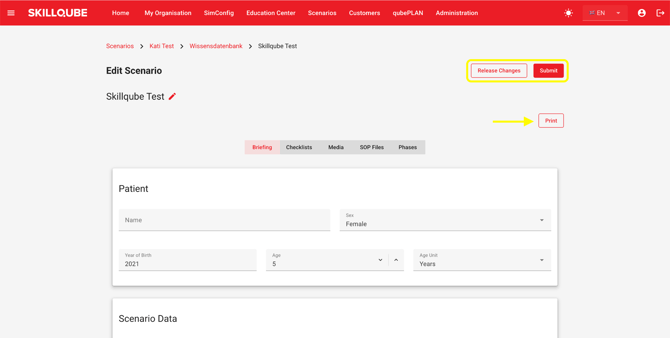
Once you have finished creating the scenario, depending on your permissions, you can either approve it for synchronisation straight away or request approval from the relevant administrator by clicking the SUBMIT button.
You can also print a scenario by clicking the PRINT button.
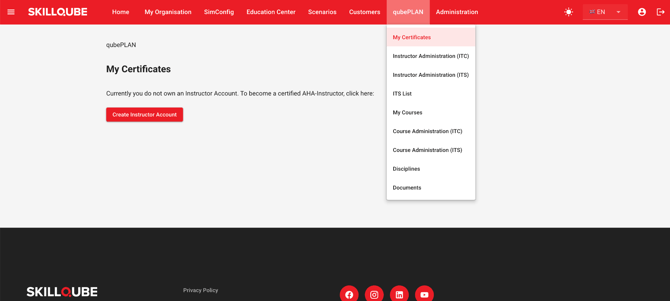
QUBEPLAN
Here, depending on your access rights, you can manage your courses, certificates and documents.