Setting up the device (MacBook)
- Establish an internet-enabled Wi-Fi connection on the MacBook.
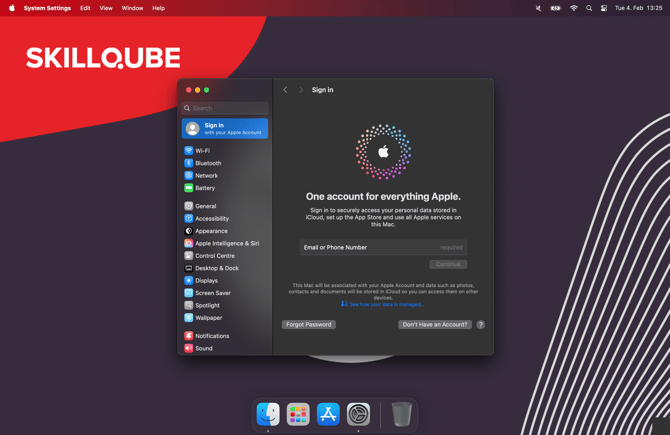
- Next, open the Settings app on your MacBook > Sign in with your Apple account to sign in to the device with an Apple account. If you don't already have an Apple account, you can create one in the same menu.
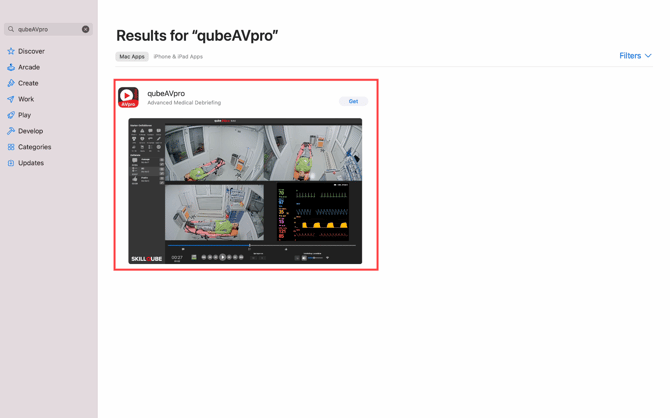
- After logging in with your Apple account, open the App Store app and search for qubeAVpro.
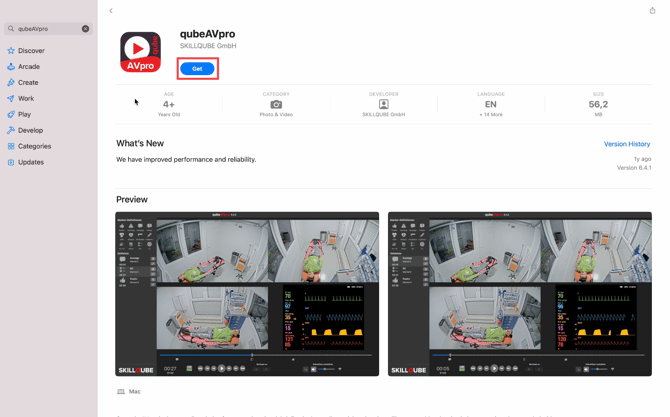
- Download the qubeAVpro app for your MacBook.
Optional: Set up device (iPad)
- Establish an internet-enabled Wi-Fi connection on the iPad
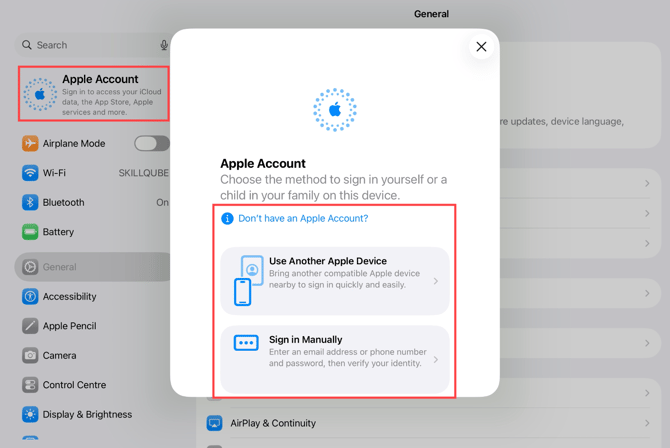
- Next, open the Settings app > Sign in to iPad to sign in to the device with an Apple account. If you don't already have an Apple account, you can create one in the same menu.
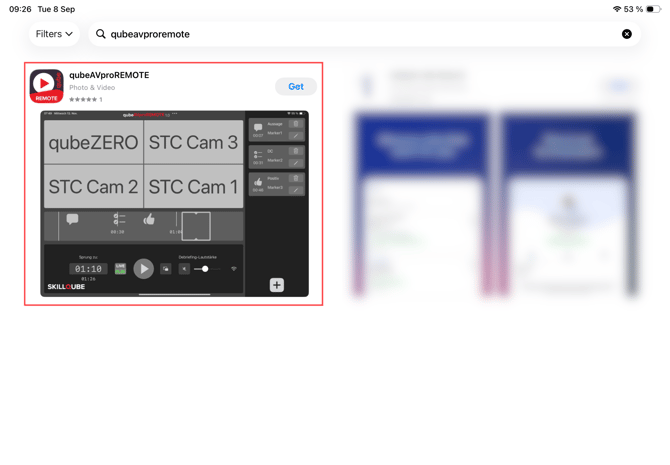
- After logging in with your Apple account, open the App Store app and search for qubeAVproREMOTE.
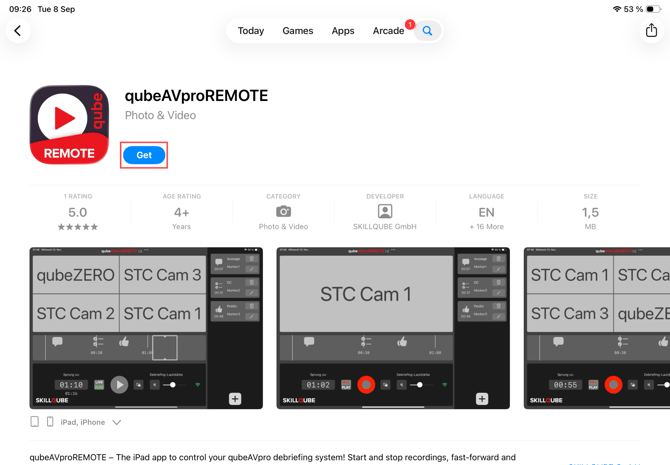
- Download the qubeAVproREMOTE app
Activate device
- The login credentials for our qubeCLOUD will be sent to the device administrator along with the new audio-video debriefing system, provided no login credentials already exist. Please follow the instructions in the email to create a user account. These credentials will be required in the next step to activate the license.
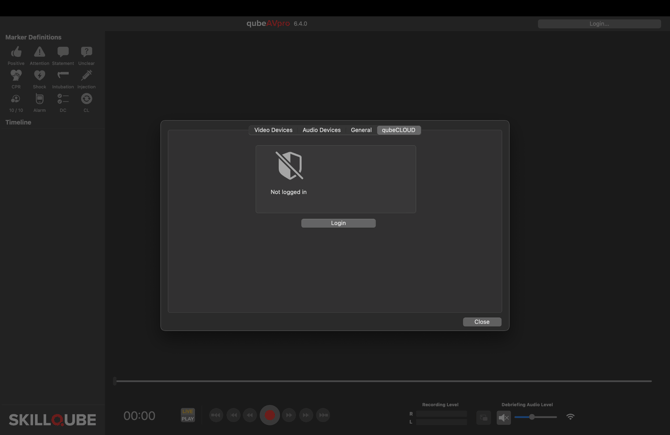
- The first time you open the qubeAVpro-App , you will need to log in to our qubeCLOUD. Click on “Log in” in the top right corner of the app, and then on “Log in”. Here you will need to enter the login details of the device administrator from step 1.
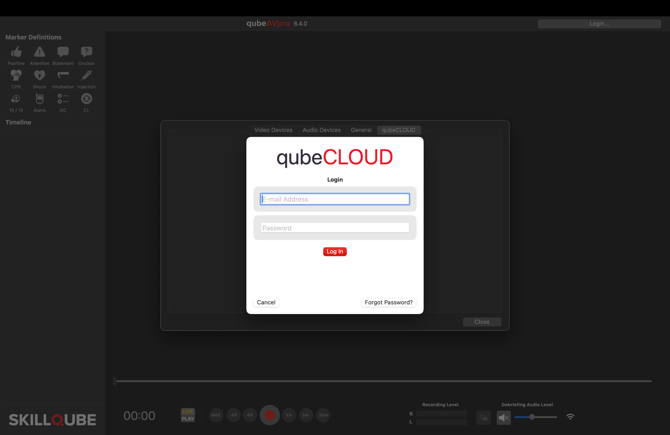
- qubeAVpro is now searching for available licenses. Select the available license to activate the device. Activation may take a short time.
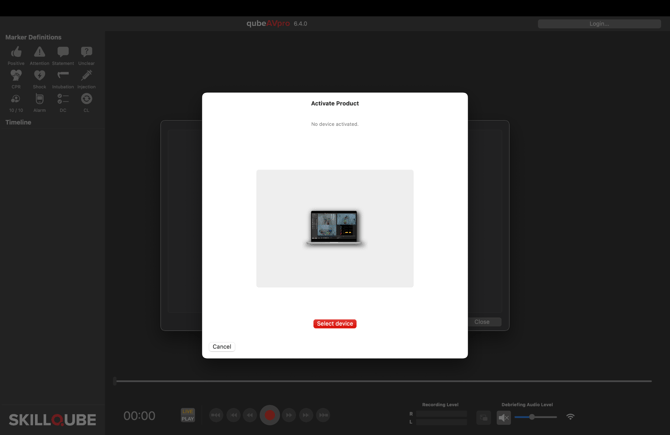
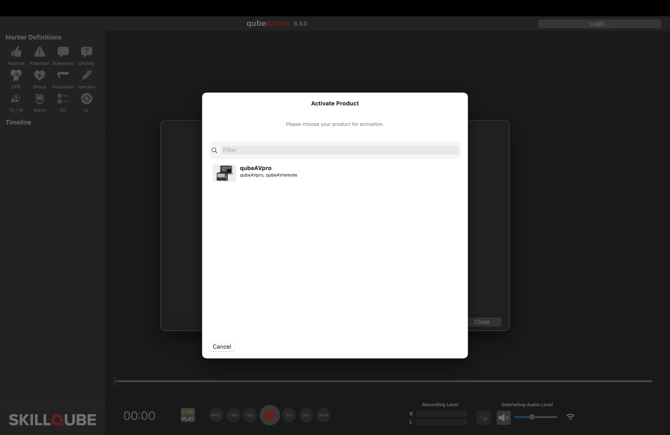
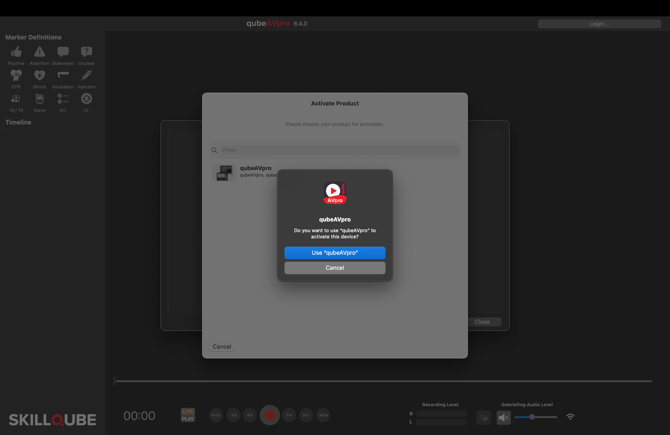
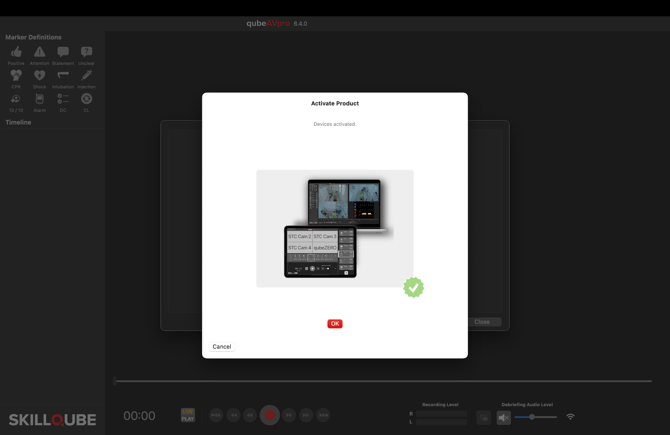
- The device has been successfully activated.