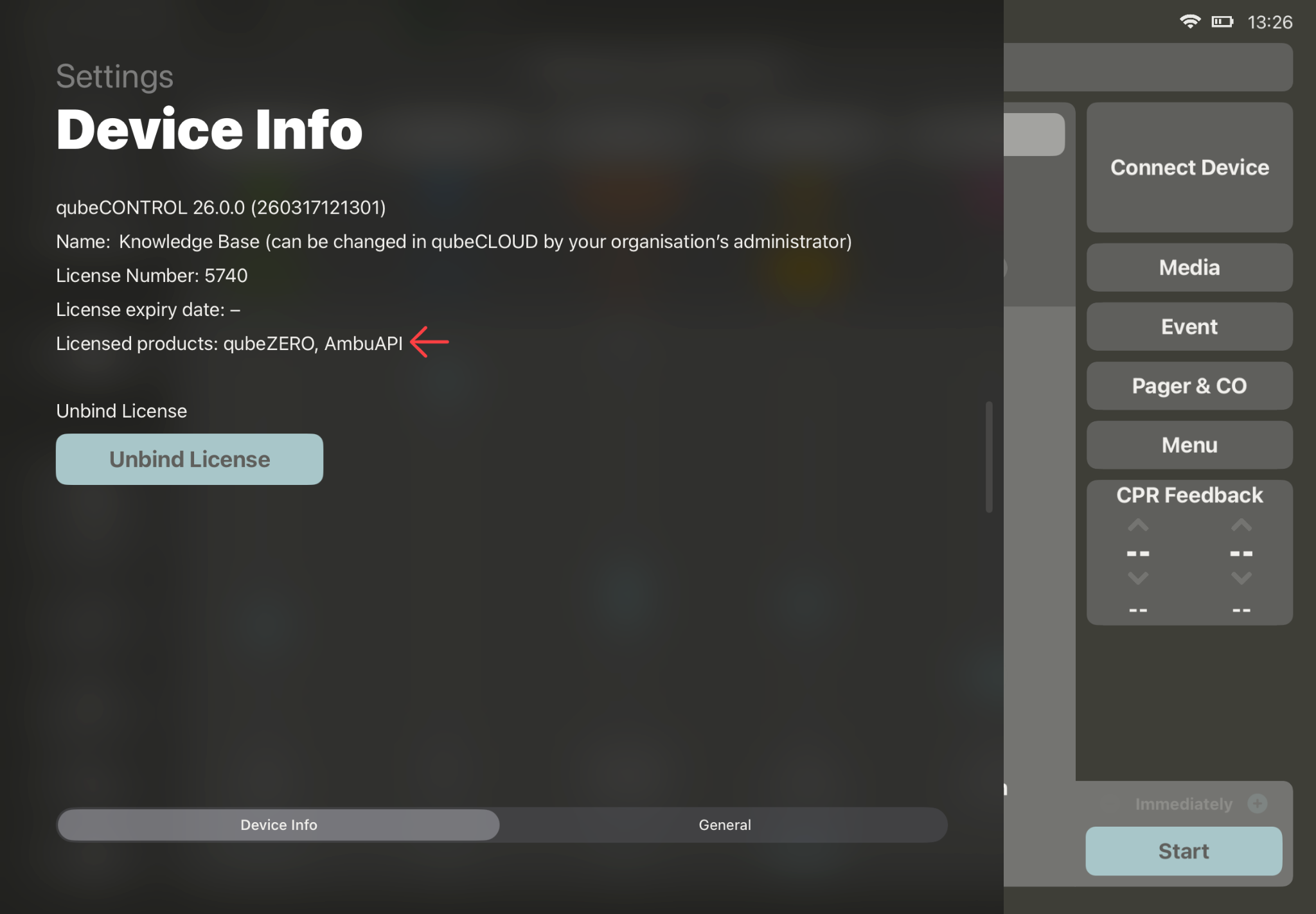
A license is required to use the AmbuManⓇ feedback functions directly in the qubeSERIES. First, you should check whether this license is activated on qubeCONTROL.
To do this, open the device information by clicking “qubeCONTROL” in the upper-left corner.
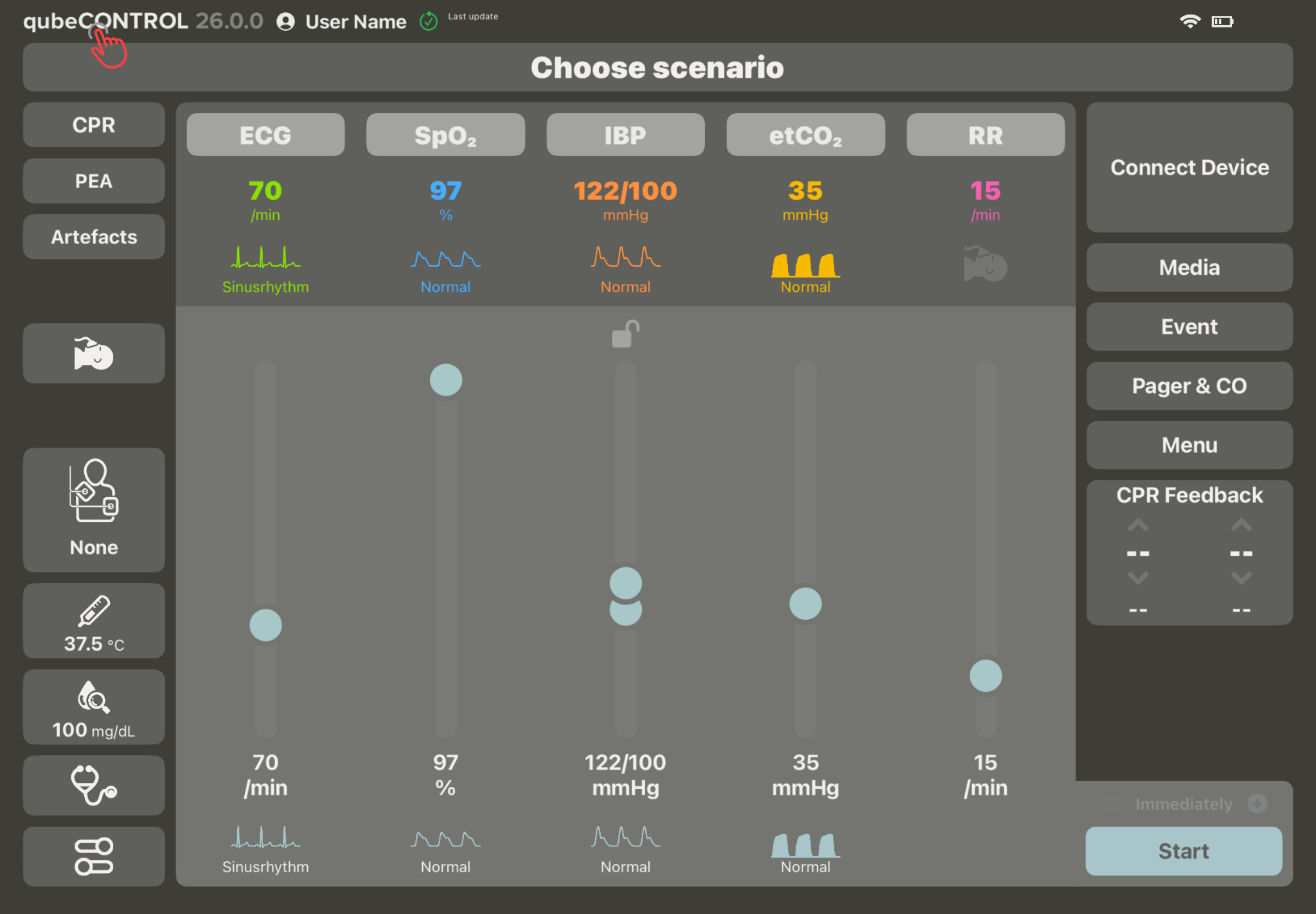
The device information displays, among other things, the licensed products. “AmbuAPI” should be listed here.
To connect to the AmbuManⓇ, the qubeSERIES devices (controller, monitor, and assessment unit) and the AmbuManⓇ must be on the same network. The easiest way to do this is to use the AmbuManⓇ built-in Wi-Fi.
Additional options are explained at the end of this guide.
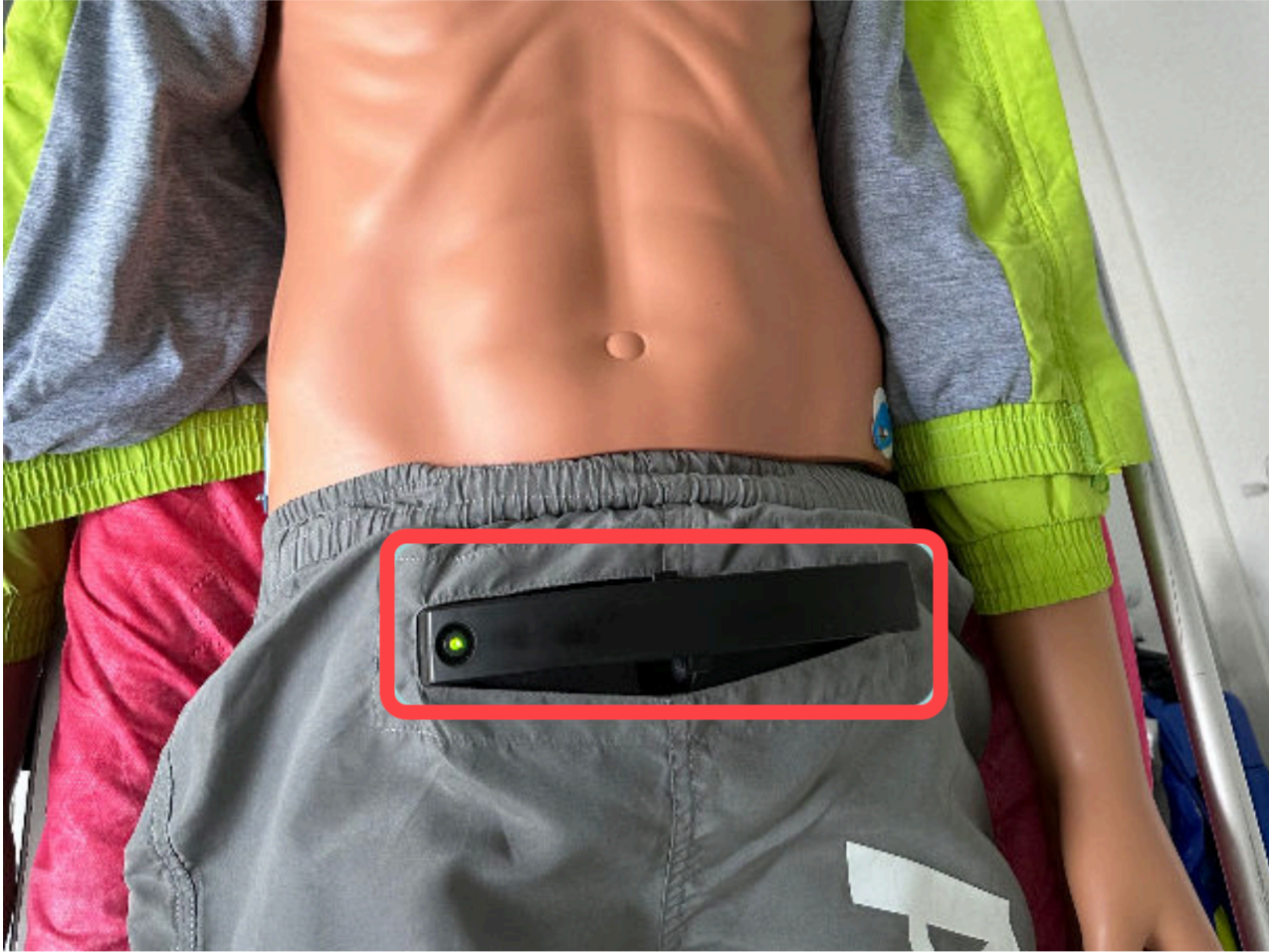
To use the AmbuMan’s built-in Wi-Fi, you must first turn on the AmbuManⓇ using the ON/OFF button. Once the LED is lit steadily in green, the AmbuManⓇ has booted up and established its own Wi-Fi network.
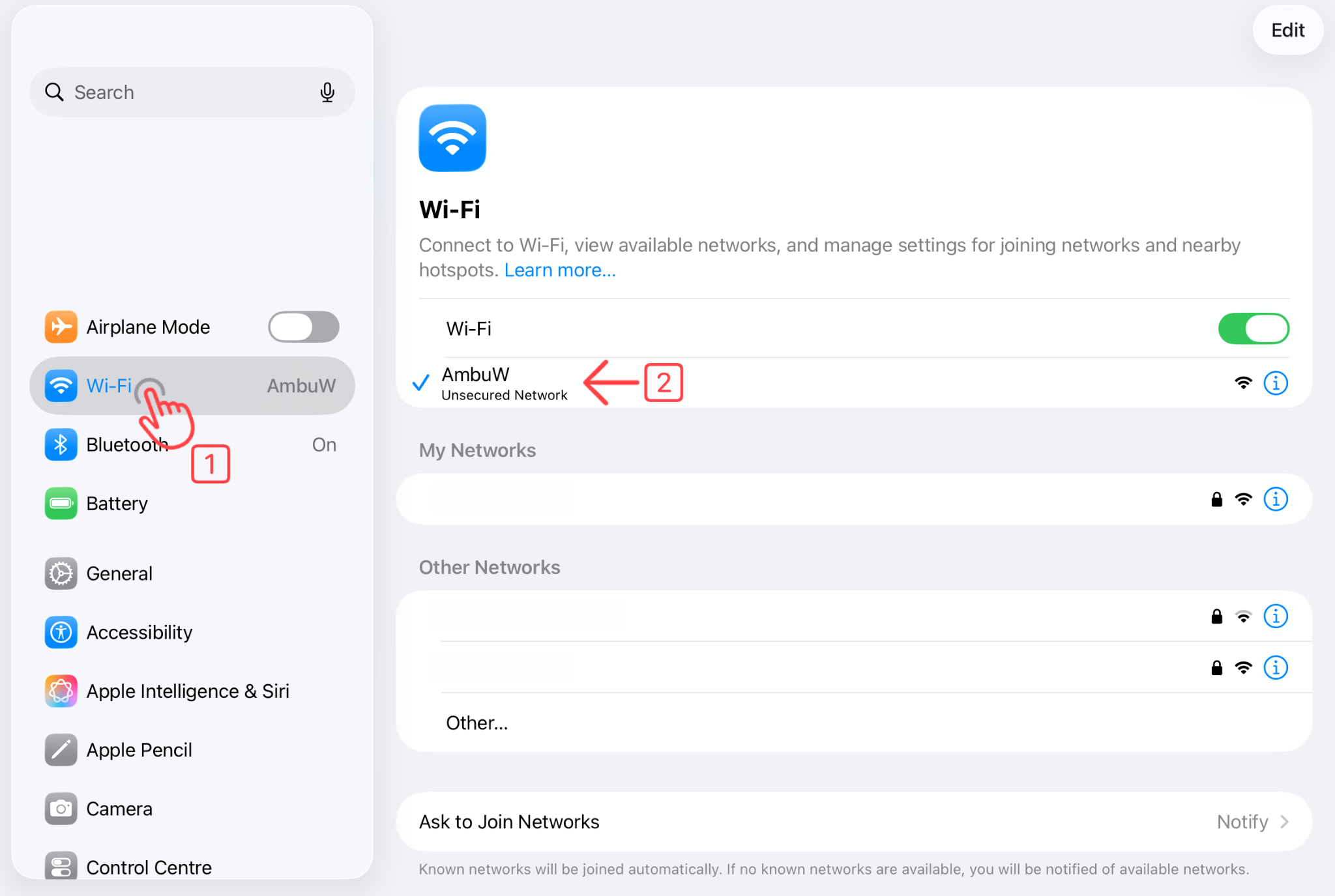
Next, the iPads must be connected to the AmbuManⓇ Wi-Fi network. The Wi-Fi network is usually named “AmbuW.”
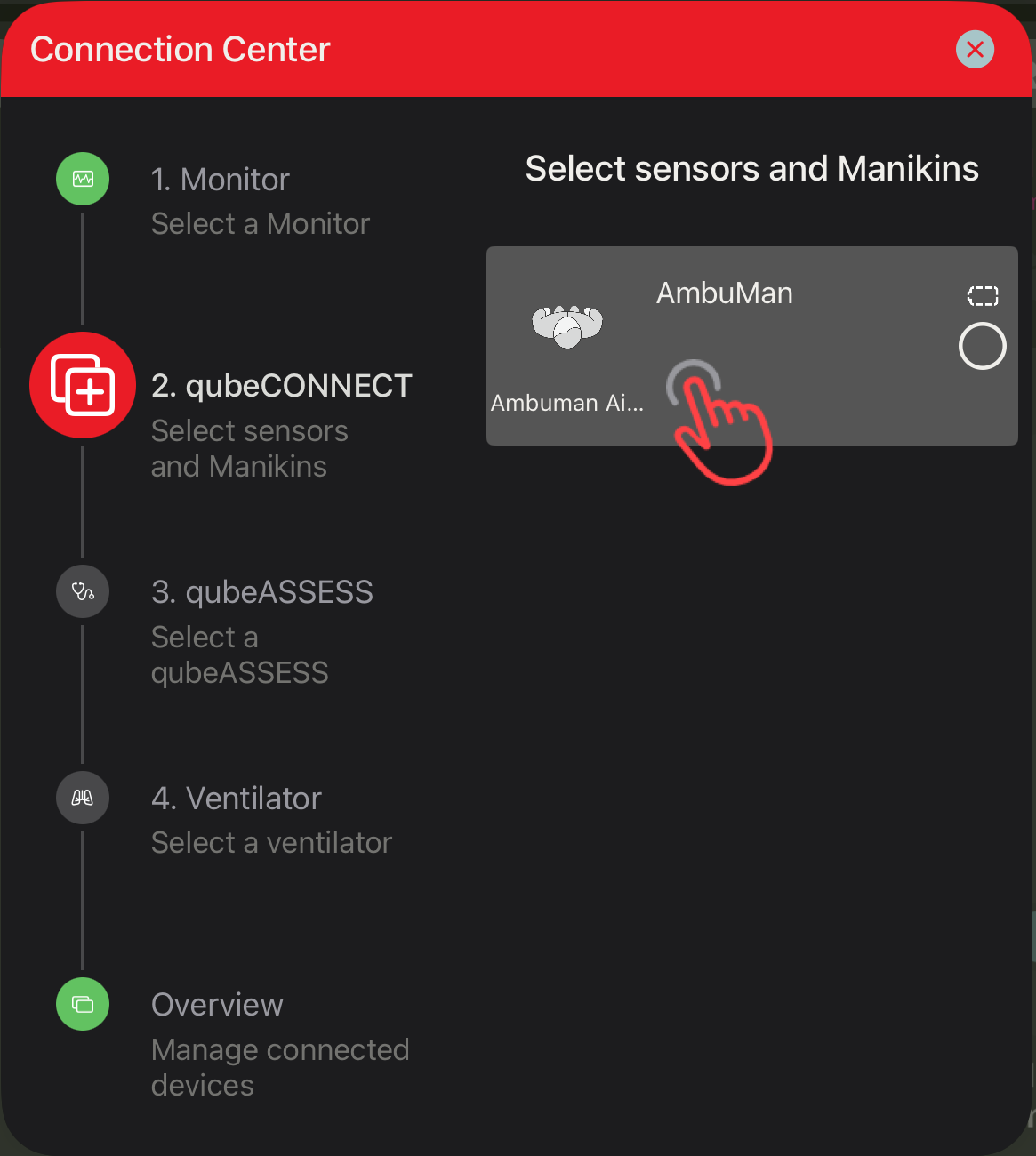
You can then establish a connection to the monitor in qubeCONTROL as usual. In qubeCONNECT, you can then select the AmbuManⓇ for the connection.
Additional Options for Integrating the AmbuManⓇ and the qubeSERIES into a Shared Network
In addition to using the AmbuManⓇ built-in Wi-Fi network, other existing networks can also be used. The AmbuManⓇ can be connected to the existing network via either LAN or Wi-Fi. Both options must be configured in the AmbuManⓇ settings. The AmbuManⓇ settings are accessed via a web browser; to do so, enter the AmbuManⓇ IP address followed by /config (e.g., 192.168.1.1/config). Details can be found in the Ambu Manikin Management Module manual.
AmbuManⓇ and qubeBOX
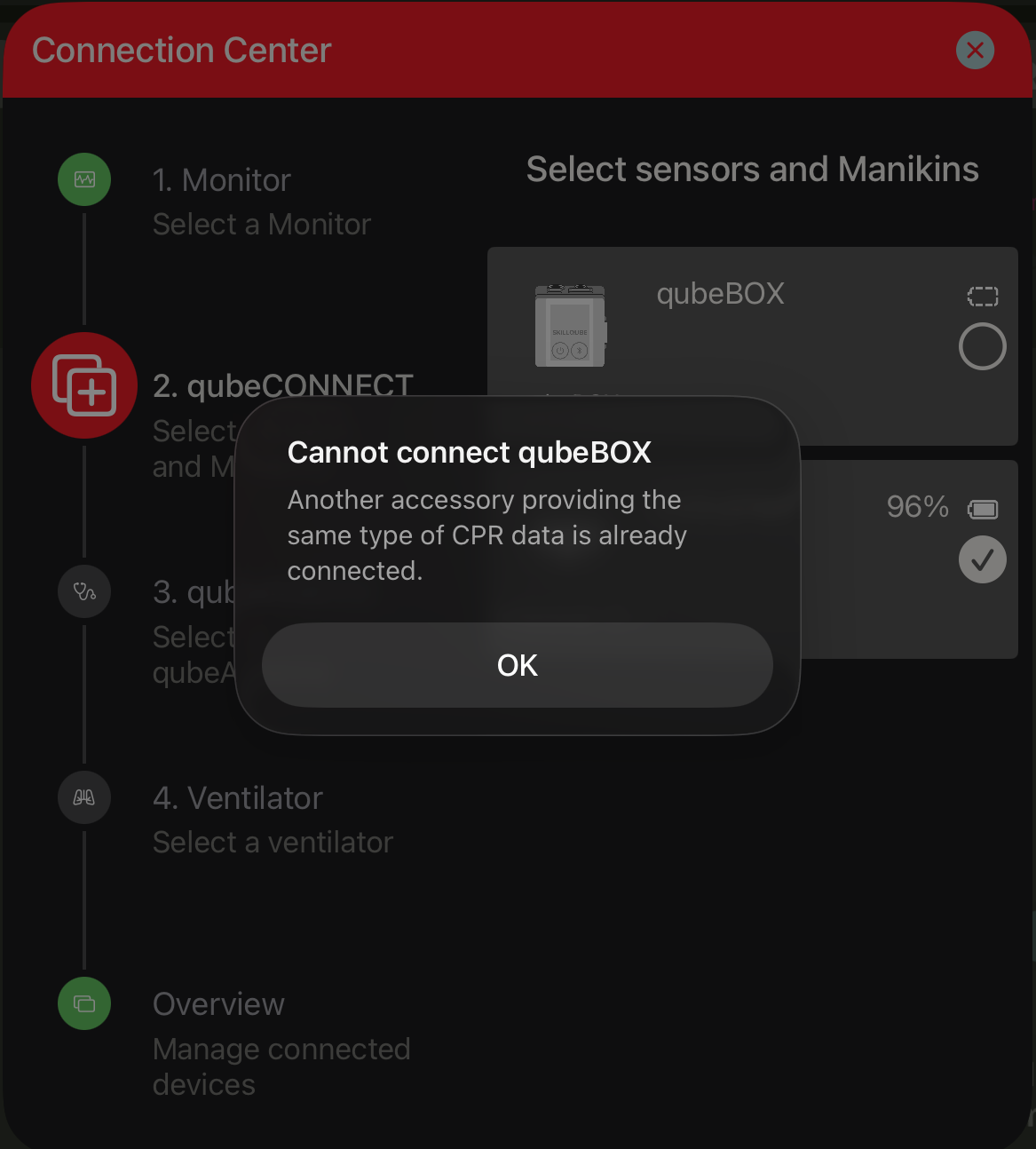
AmbuManⓇ and qubeBOX cannot be connected at the same time. If you attempt to connect AmbuManⓇ and qubeBOX at the same time, an error message will appear.
Troubleshooting
|
Problem |
Possible Cause |
Solution |
|
AmbuMan® is not displayed in the Connection Center. |
During initial configuration of qubeCONTROL, a pop-up window opens with the following message: “qubeCONTROL would like to find and connect to devices on your local network.” This app requires access to the local network. The "Don't Allow" button was clicked here. |
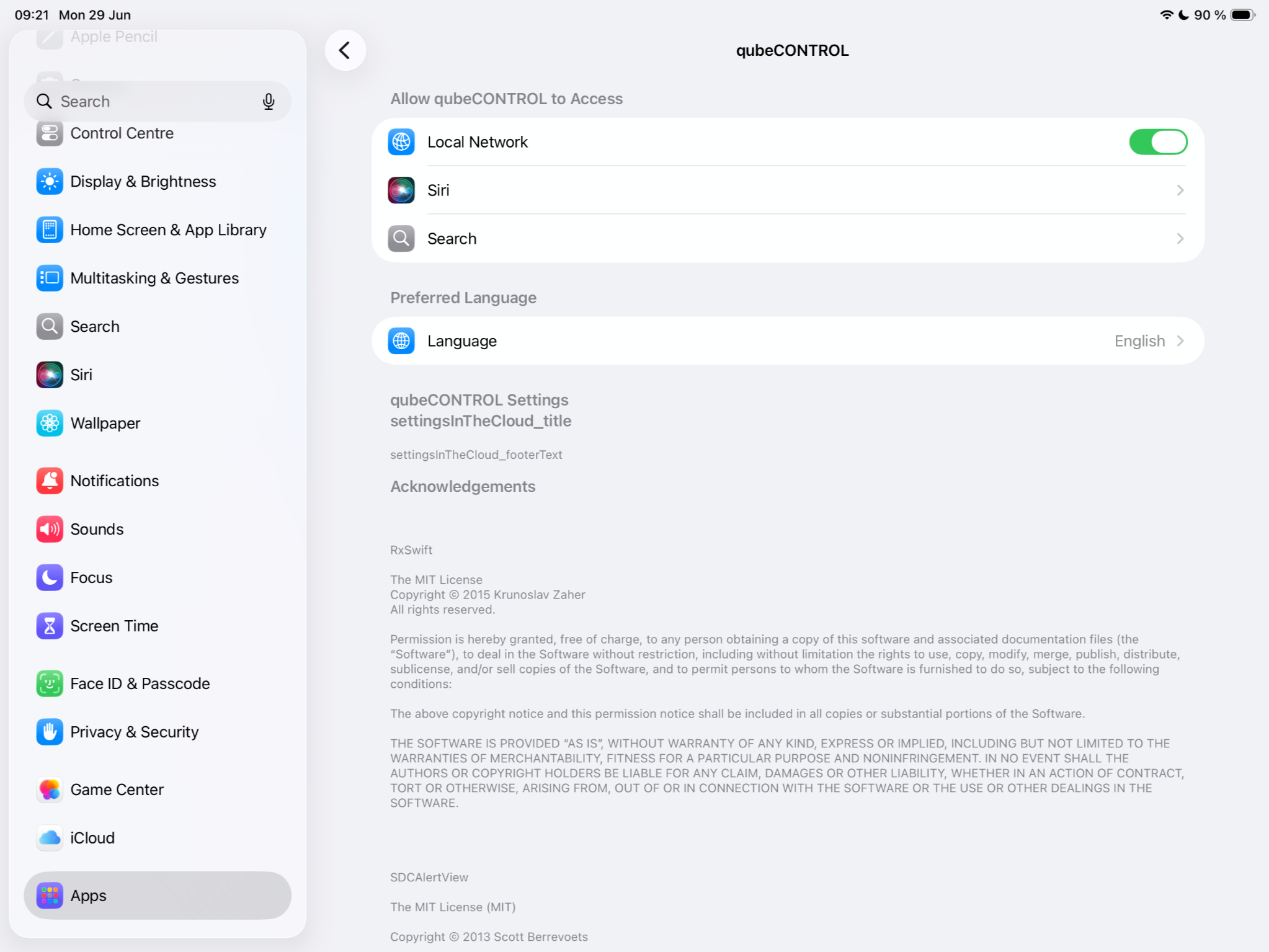
Ensure that access to the local network is allowed for the respective app in the iPad settings. To do this, open the iPad settings and scroll down on the left side until the Controller app appears. Select it and ensure that Local Network is enabled on the right side. |
|
|
||
|
AmbuMan® is no longer displayed in the Connection Center. |
After switching off the AmbuMan® or power loss due to a low battery, the Wi-Fi connection to the qubeSERIES is disconnected. |
Ensure power is supplied and start the connection process again. Reconnect the qubeSERIES to the AmbuMan network (AmbuW) and establish a connection via qubeCONTROL. |
|
AmbuMan® no longer sends data to the controller after closing qubeCONTROL. |
If qubeCONTROL is closed or minimized, the connection to the AmbuMan® is automatically disconnected. |
Open qubeCONTROL. Tap the “Connect device” button in the top right and reconnect to the AmbuMan®. |
|
AmbuMan® is displayed in qubeCONTROL but cannot be connected, and no error message is displayed. |
A hardware reset is required. |
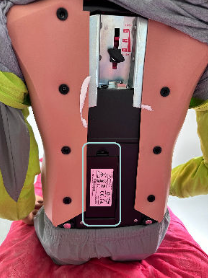
Disconnect the AmbuMan® power supply (battery) and reinsert it. Note: The battery is located in the lower back area of the AmbuMan®.
|
|
Ambu Man® is displayed in qubeCONTROL, but when connecting, the following error message appears: "This device cannot be connected to AmbuMan®. Please contact the device manager of your organization." |
No license is activated on the qubeCONTROL in use. After the license is released by SKILLQUBE, it must be synchronized with qubeCLOUD in qubeCONTROL to be activated. |
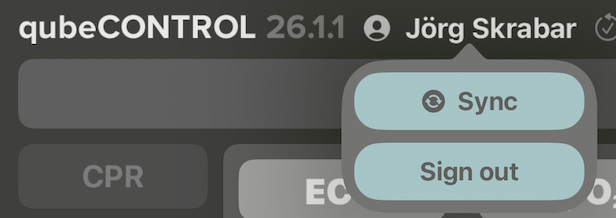
Synchronize qubeCONTROL with qubeCLOUD by clicking on your username and clicking the “SYNC” button.
Note: If no license is available, please contact support@skillqube.com. |