
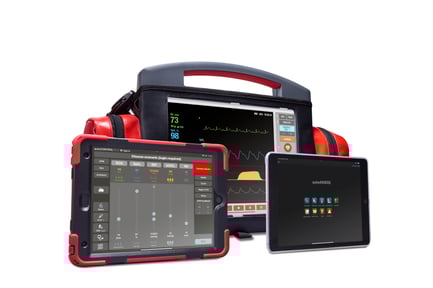
Controller iPad Monitor iPad Assessment iPad
1 Setting up devices
-
Establish an Internet-capable WiFi connection on all iPads.
-
Next, open the Settings app
 > Sign in to your iPad to sign in to your devices with your Apple Account. If you don’t have an Apple Account, you can set one up in the same menu.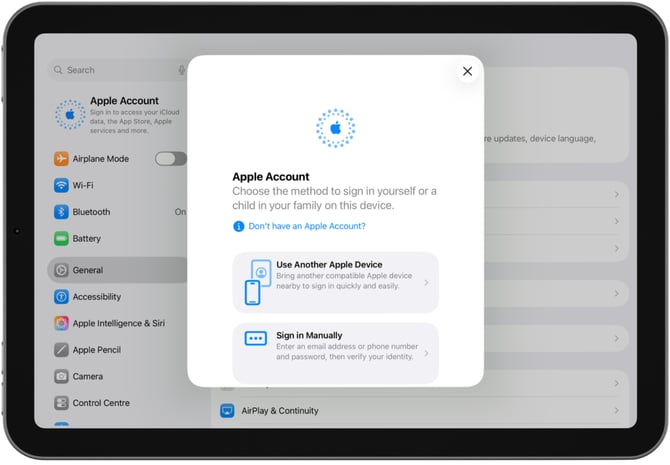
-
After logging in with your Apple Account on all devices, open the App Store app and search for SKILLQUBE.
.svg.png?width=60&height=60&name=App_Store_(iOS).svg.png)
-
Download the qubeCONTROL app for the controller and the qubeASSESS app for the assessment. Download the interface available to you for the monitor, e.g., the qubeZERO app.
Need help with using the iPad? For more information, visit support.apple.com
2 Activate devices
-
With the delivery of the new simulation device, the access data for our qubeCLOUD were sent to the device administrator. Please follow the instructions in the e-mail to create your user account. You will need that access data in the next step to activate the license.
- Now open qubeCONTROL. When you open the app for the first time, the software requires you to log in to our qubeCLOUD. Enter the device administrator access data from step 1.
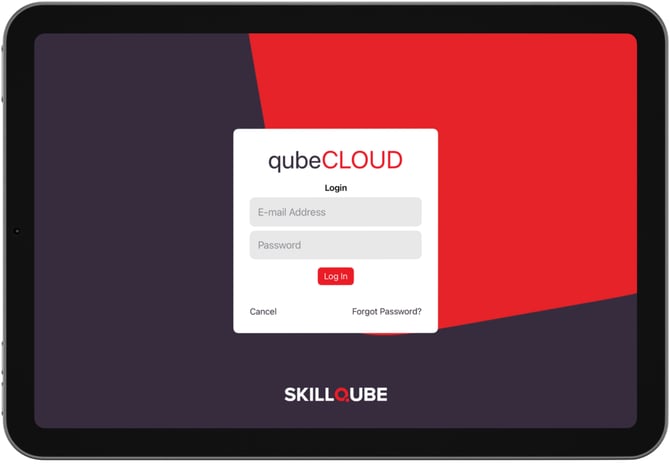
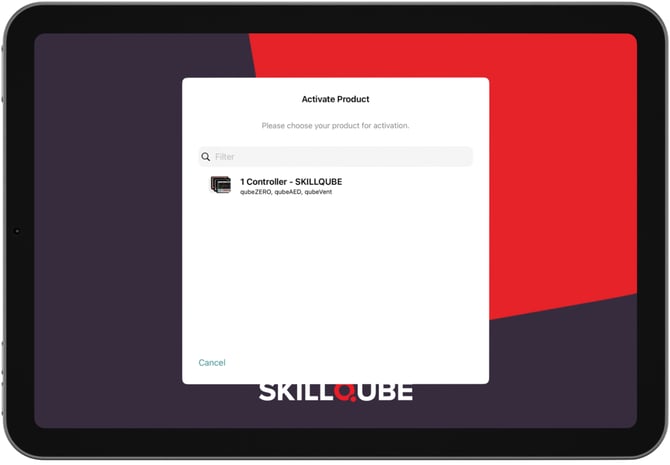
- qubeCONTROL will now search for available licenses. Select the available license to activate your device. Activation may take a short time because the first scenarios and device-specific settings are already being transferred.
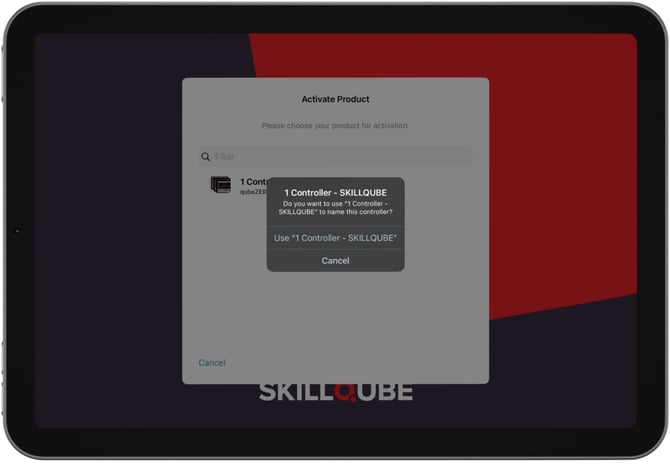
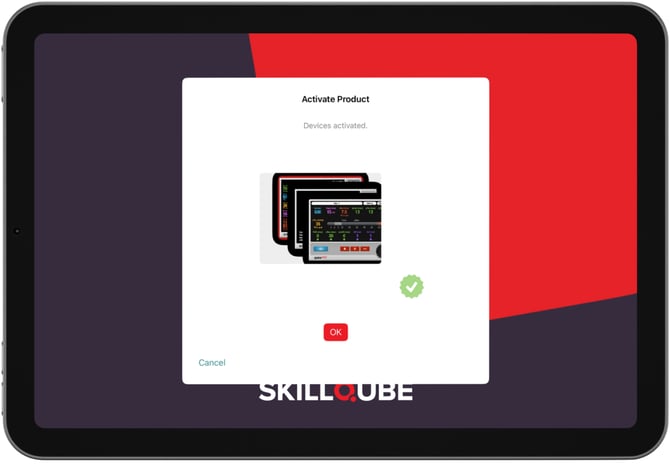
- In the next step, open qubeASSESS to log in with your qubeCLOUD access data. Tap on Not signed in in the top right corner.
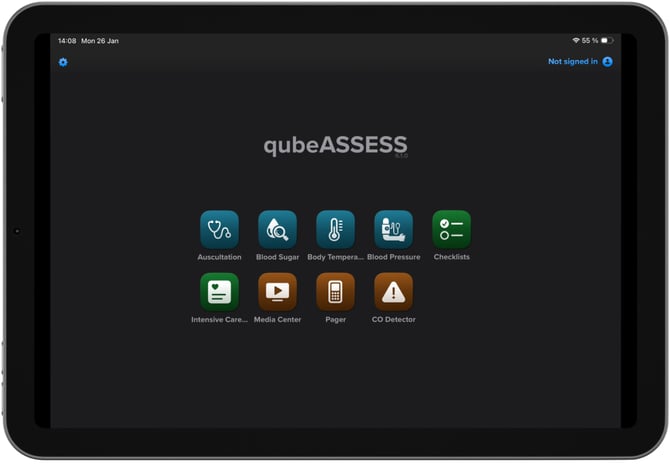
By logging in, existing scenario-based media will be loaded into the assessment, reducing the amount of data during the simulation. This step is not mandatory, but we recommend it.
Connect devices
Before you start the simulation, ensure your devices are on the same WiFi network. Then open qubeCONTROL, qubeASSESS, and the desired monitor.
-
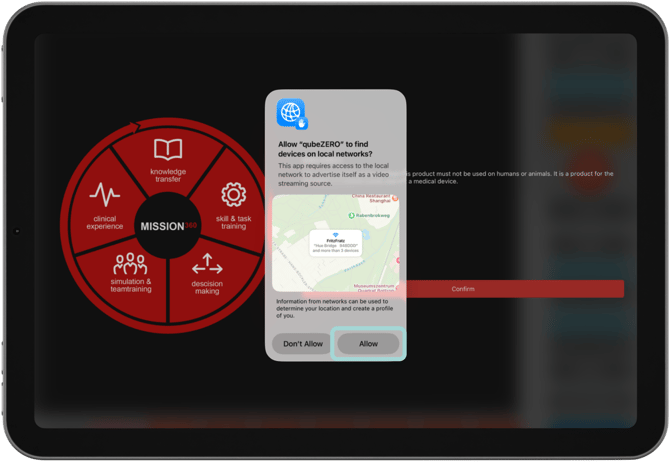
After starting the Monitor app, you will be asked about local network connections. Confirm this query.
- To connect controller and monitor, tap the red flashing button on the top right corner (of the controller): Connect Device.
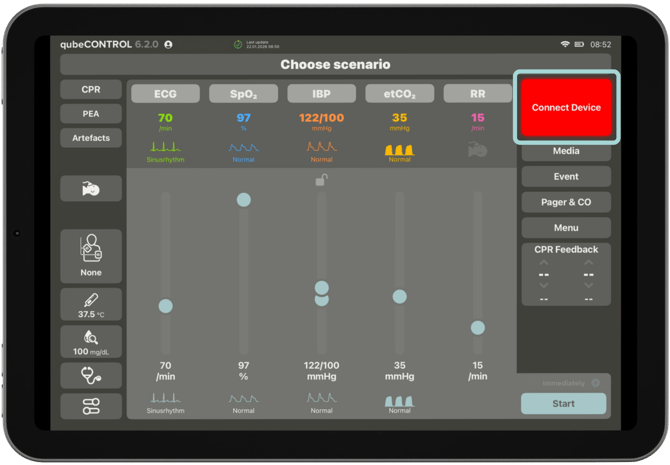
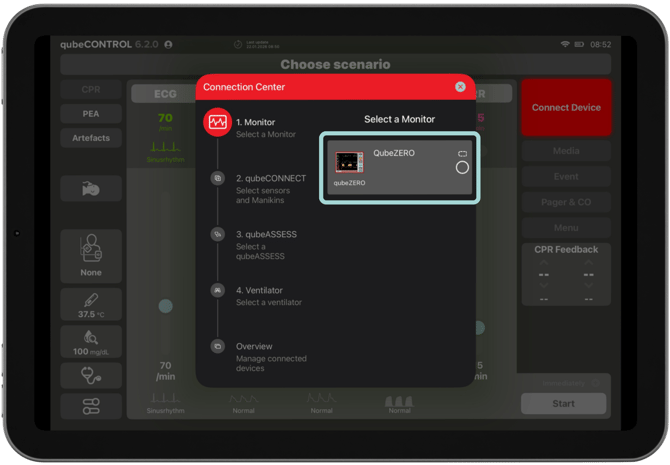
- Tap to open the Connection Center with all available devices nearby. Find your monitor and select it by tapping on it.
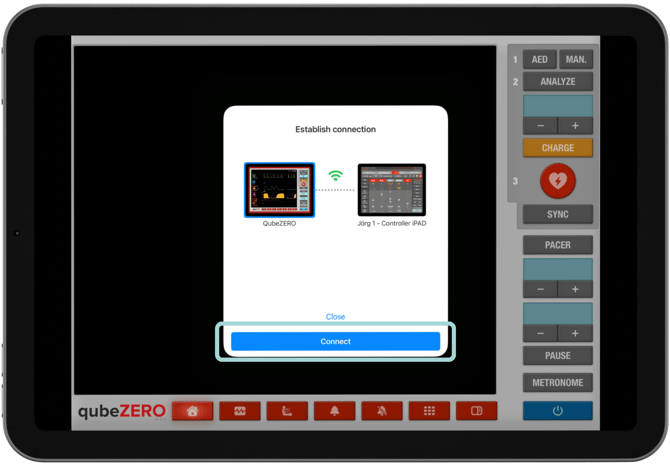
- You will be asked to confirm the connection on the monitor. If the devices are successfully connected, a blue frame will appear.
- Repeat this connection process in qubeCONNECT to connect your qubeBOX or simulators. To do this, confirm the Bluetooth prompt.
Finally, connect the assessment and, if available, the ventilation simulator.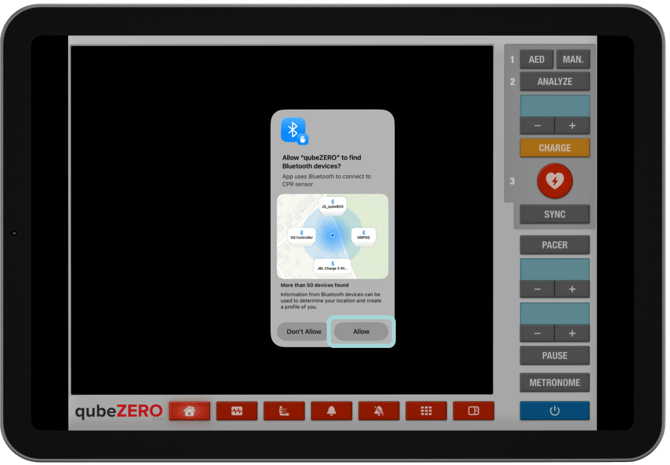
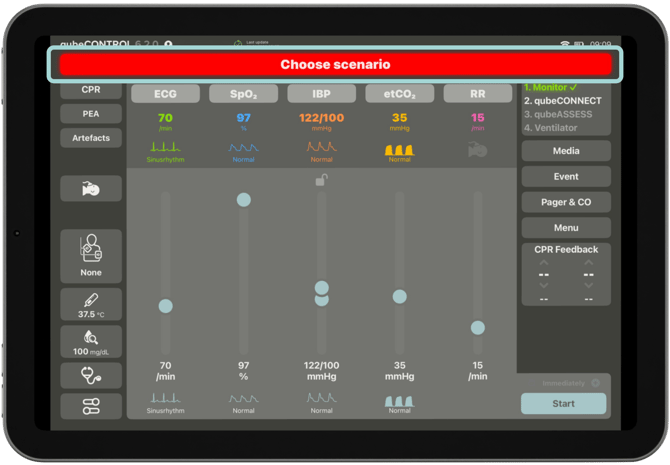
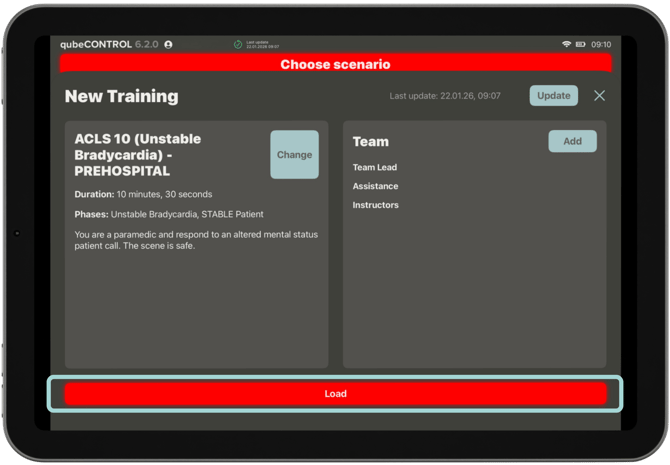
- To start a scenario, tap the top red flashing bar Choose scenario. You can now choose between a free scenario or a pre-programmed scenario. Once you have selected the desired scenario, tap Load at the bottom of the screen and then Start now.
Running a simulation
After starting the scenario, you can activate the vital signs and adjust various settings.
-
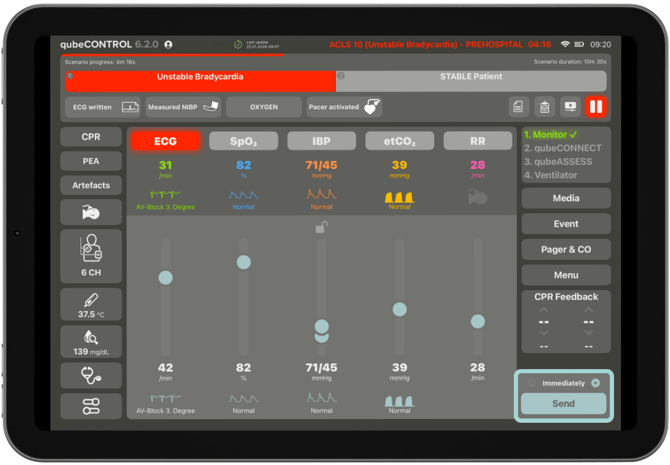
Activate and deactivate vital signs by simply tapping on them. Depending on the vital signs, you need to make further settings. If the button for the vital sign value, e. g., ECG, is red, the value is active and visible on the monitor.
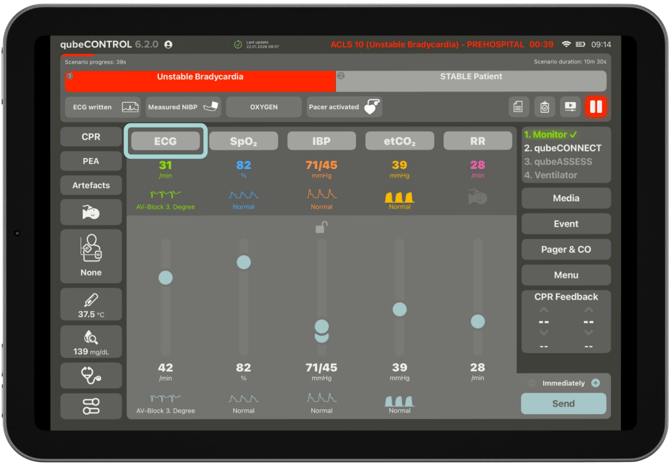
- The active vital signs can be changed using the sliders. To modify the waveform, tap the desired waveform at the bottom.
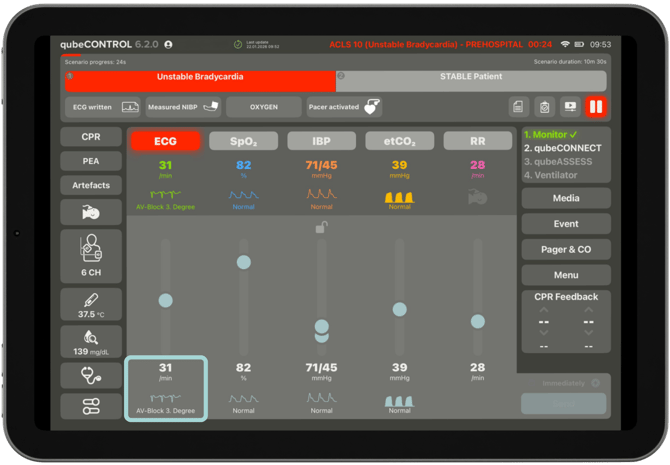
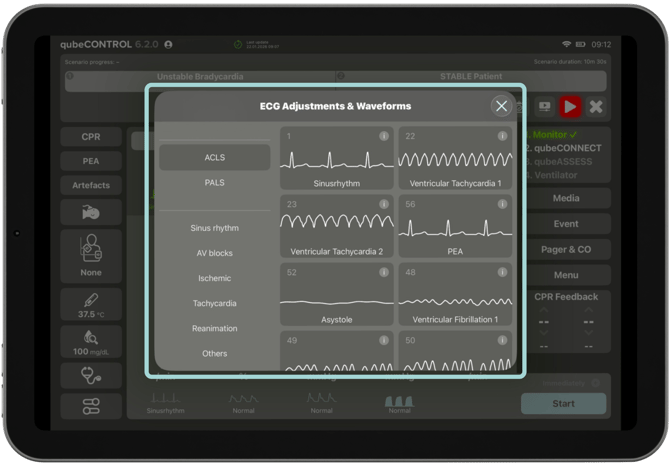
- To send the changed vital signs to the monitor, tap Send in the lower right corner of the controller. You can use the + / - buttons above to set a trend time over which the vital sign value should develop.
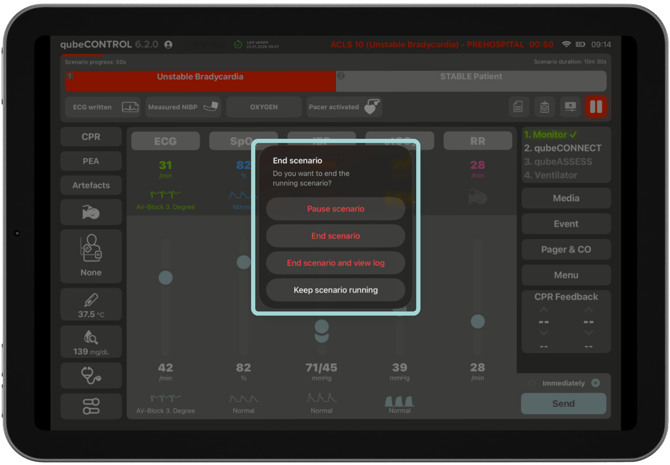
- To end a pre-programmed scenario, click the pause symbol at the top right. To end a scenario, tap the top red flashing bar Pause or end scenario. You can view the logbook immediately after the scenario. The simulation monitor switches off automatically.
Note
Internet connection: An Internet connection is required to activate the license and to install updates for the SKILLQUBE apps and the Apple operating system (iPadOS). We recommend using the included WiFi router to ensure a stable device connection during the simulation training. The access data can be found on the router. Connect all iPads to this network. To disconnect known WiFi networks, go to the Settings app > WiFi > i > Forget This Network.
General information
Keep your software up to date! Subscribe to our newsletter to receive information about software updates for our apps.
Additional simulation products are also available to expand the qubeSERIES, such as our qubeBOX and qubeTRIGGER.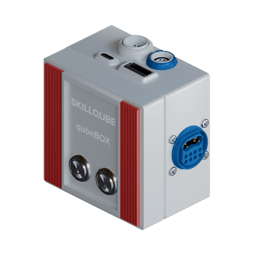
en.skillqube.com