
If a connection cannot be established between the qubeCONTROL und qubeMONITOR, there may be various causes. These should be checked one by one.
The licence number active on the controller may be helpful for troubleshooting. This can be viewed in the controller app: tap the app logo (qubeCONTROL) in the top left-hand corner. A window containing the device information will open, where you will find the licence number, amongst other details.
The monitor cannot be found. In the controller, click the red flashing ‘Connect Device’ button in the top right-hand corner; subsequently, no device is found in the Connection Centre. Please carry out the following steps one by one.
- Ensure that both iPads are connected to the same Wi-Fi network. Ideally, this should be the router supplied with the device. In existing networks, communication between the devices may be blocked under certain circumstances – particularly in managed networks.
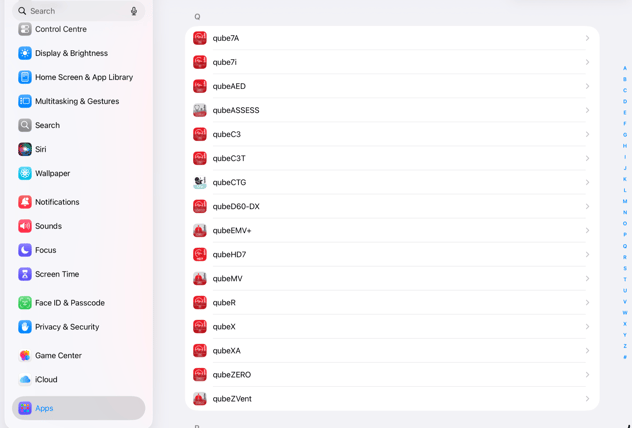
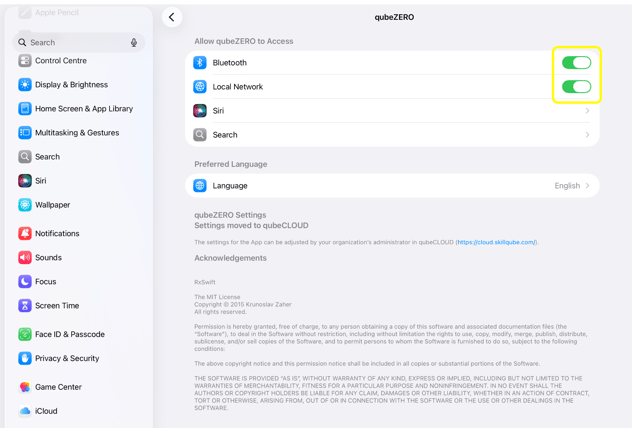
- In the iPads’ settings, ensure that the relevant app is permitted to access the local network. To do this, open the iPad’s settings, scroll down on the left-hand side and select ‘Apps’. Then scroll down on the right-hand side until the Monitor app or Controller app appears. Select the Monitor app or Controller app and ensure that ‘Local Network’ is enabled.
Although the monitor is detected, the following error message appears when attempting to establish a connection:
“No device activated. Please log in to activate the device.”
Please follow the steps below in order:
- No licence is activated on the iPad. This may be the case either because no licence has yet been activated or because the licence has been lost. In qubeCLOUD under My Organisation -> Devices, you can view the available licences. If the licence is highlighted in green, it is tied to a device – either to another device or it was previously tied to the device in question and has been lost. If the licence is highlighted in red, it is not tied to any device and can be activated by logging in to the controller. If the licence is coloured green, it must first be unbound by SKILLQUBE (if an app software version older than 26.0.0 was installed). In this case, please provide the licence number and organisation details to SKILLQUBE Support. From software version 26.1.0 onwards, the licence can also be unbound directly within the app in the device settings using the ‘Unbind licence’ button. It can then be reactivated.
- In the qubeCLOUD, under My Organisation > Devices, you can create a temporary emergency licence to enable you to resolve the issue yourself quickly. Once an emergency licence has been created, please also contact SKILLQUBE Support to resolve the existing issues.
Although the monitor is detected, the following error message appears when attempting to establish a connection:
“Connection with qubeCLOUD required. Please log in to activate the device.”
If this error message appears, it means the controller has not been connected to qubeCLOUD for some time. The licence must be validated by qubeCLOUD. An internet connection must be established. Then, click on the logged-in user in the top-left corner of the controller and select ‘Sync’. You may need to re-enter your qubeCLOUD login details.
Although the monitor is detected, the following error message appears when attempting to establish a connection:
“Device no longer usable. Please log in to activate the device.”
The licence has expired. You can view the full details in qubeCLOUD under My Organisation > Devices.
Although the monitor is detected, the following error message appears when attempting to establish a connection:
“This device cannot be connected to [Monitor]. Please contact your organisation’s device manager.”
An attempt is being made to connect a monitor that is not included in the activated licence. It is possible that the wrong monitor was accidentally downloaded from the App Store (e.g. qubeC3T instead of qubeC3 or qube7i instead of qube7A). The exact details can be viewed in qubeCLOUD under My Organisation -> Devices